
ZenGrove
Built to move. Down to the last leaf.
Built to move. Down to the last leaf.
The ZenGrove 1.0.0 reference: 52 nodes, 907 settings and short WebM demos. Explore Look At asset orientation, GameDynamics, joint previews, skeletal export and per-leaf random vertex colors. Requires AO.Hub 1.6.6 or later.
Trim
Cuts branch ends to a chosen length or percentage. Use it for a clipped crown or more even branch lengths.
Branches
Branches
Choose target length or percentage, then use Length Randomness for seeded variation. Children beyond the cut are removed; surviving attachments are remapped. Trim continues carrying an incoming mask.
Trim reads the mask at each branch base before cutting. White selects, black protects, and gray uses a fixed 50% threshold. Exactly 50% belongs to Mask, keeping Mask and Invert Mask complementary. A black tip does not cancel a white base. Use Structural Combine afterward to release the selection.
Watch the Trim settings tour
Current Maya controls, including conditional settings. Each view stays on screen for one second (three views take three seconds); pause or choose a group to inspect it.
Affect
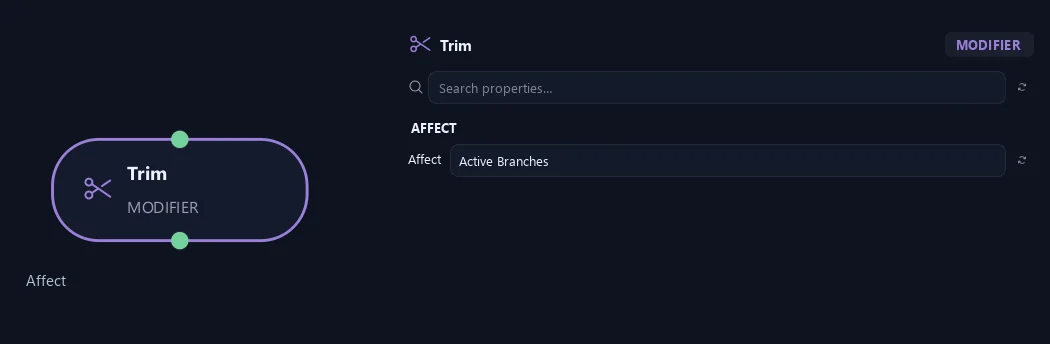
- Affect
Chooses which branches are affected. Active Branches uses the latest generated layer. Active + Descendants also includes growth from that layer. Active Generated Hierarchy additionally includes ancestors created by that same generated contribution. Entire Input uses everything arriving here. Attached children follow a moved parent even when they are not reshaped themselves.
Setup
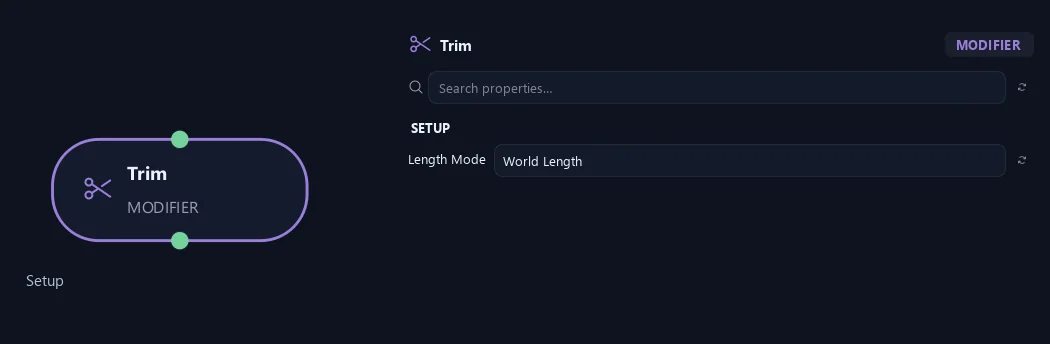
- Length Mode
World Length cuts every selected path to one scene-unit length. Length % keeps a fraction of each path's current total length. An incoming mask selects at the branch base with a 50% threshold, without random selection.
Generation
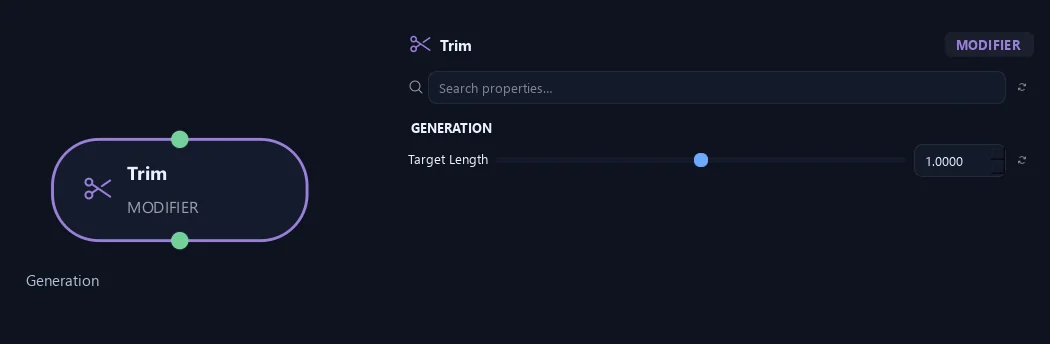
- Target Length
Sets retained length in scene units. It cuts long branches rather than growing short ones longer.
Available when Length Mode is World Length.
Shape
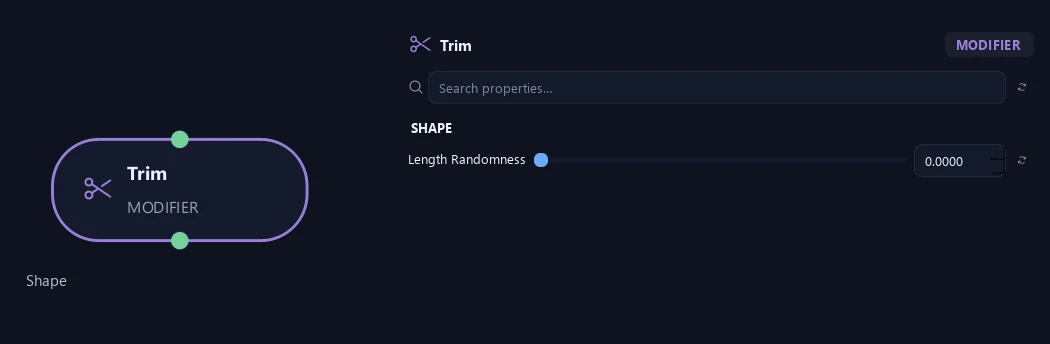
- Length Randomness
Varies the chosen cut length. Zero gives even cuts; 0.2 gives up to 20% variation in either direction.
Advanced
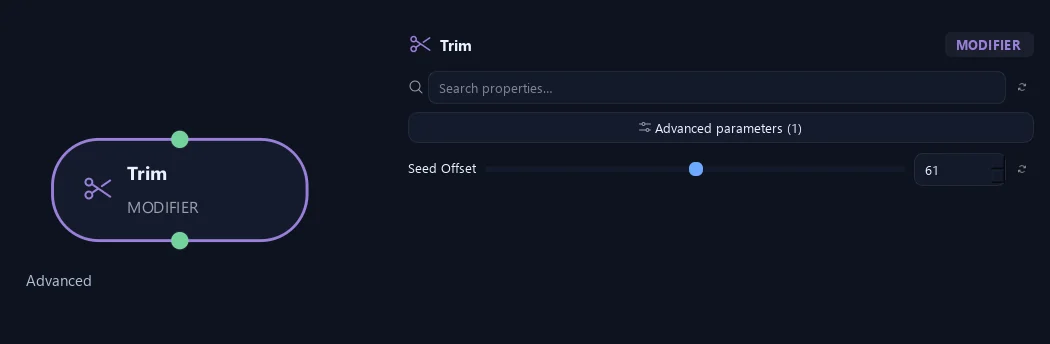
- Seed Offset
Changes this node's random variation. Keep the seed and settings unchanged to reproduce the same result.
Generation
Shown example: Length Mode = Length %.
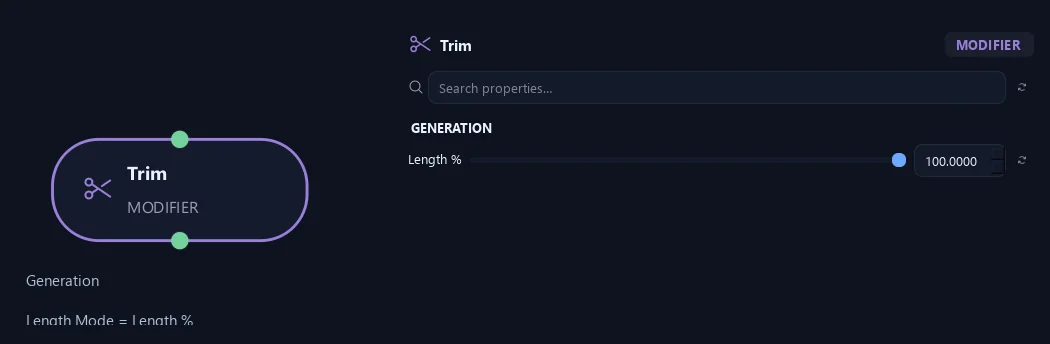
- Length %
Sets the percentage of current length to keep. For example, 50 keeps half.
Available when Length Mode is Length %.
What is ZenGrove used for?
The ZenGrove 1.0.0 reference: 52 nodes, 907 settings and short WebM demos. Explore Look At asset orientation, GameDynamics, joint previews, skeletal export and per-leaf random vertex colors. Requires AO.Hub 1.6.6 or later.
Which host application does ZenGrove support?
ZenGrove is built for Autodesk Maya and is distributed through AO Studio Tools.
Where can I download ZenGrove?
Download the current AO Studio Tools package from https://aostudio.tools/getthetools.html and install it through AO.Hub.