
ZenGrove
Built to move. Down to the last leaf.
Built to move. Down to the last leaf.
The ZenGrove 1.0.0 reference: 52 nodes, 907 settings and short WebM demos. Explore Look At asset orientation, GameDynamics, joint previews, skeletal export and per-leaf random vertex colors. Requires AO.Hub 1.6.6 or later.
Output
Builds explicitly connected wood and foliage as Maya geometry. Connect Branches for wood, Growth for foliage, or both for the complete plant; choose preview and final mesh detail.
Assets · Branches (multiple connections) · Growth (multiple connections)
Result
Branches builds wood. Growth builds leaves and scattered assets. Connect both for a complete tree. A foliage-only connection keeps its branch carrier internally for placement and animation, but no longer emits wood implicitly. Add an explicit Branches wire when upgrading an older graph that relied on that behavior.
Use Build Preview and the preview limits while shaping; Build High requests the detailed result. Limits may reduce visible foliage or geometry and are not changes to generator counts. Inspect the build status for omissions and budgets. Performance work is ongoing; practical limits depend on the graph and source assets.
Open Settings → Generate Static Mesh to create independent full-resolution snapshots. Name, Count, Start Seed, Seed Step and Frame define the batch. Count 5 from seed 42 with step 1 creates seeds 42–46. Wood and leaves are separate meshes; missing components are omitted. UVs, colors, normals and materials are retained, without welding the parts or packaging external textures.
Fast Instances shares direct-mesh instances in groups of 128; hierarchies use ordinary instances. Editing source geometry updates its group, while component edits on generated leaves can affect the group. The combined static leaf/asset overlap pass runs before preview limits. Skip can lower the count; active Dynamics cannot be combined with avoidance.
The optional Assets input accepts Asset Generator, Asset Array, Asset Assemble or a captured Asset Collection without a growth chain. Choose Selected Variant or All Variants and set the variant number or X spacing. Direct Assets also controls the final build/export, alongside any connected Growth and Branches.
Watch the Output settings tour
Current Maya controls, including conditional settings. Each view stays on screen for one second (three views take three seconds); pause or choose a group to inspect it.
Setup
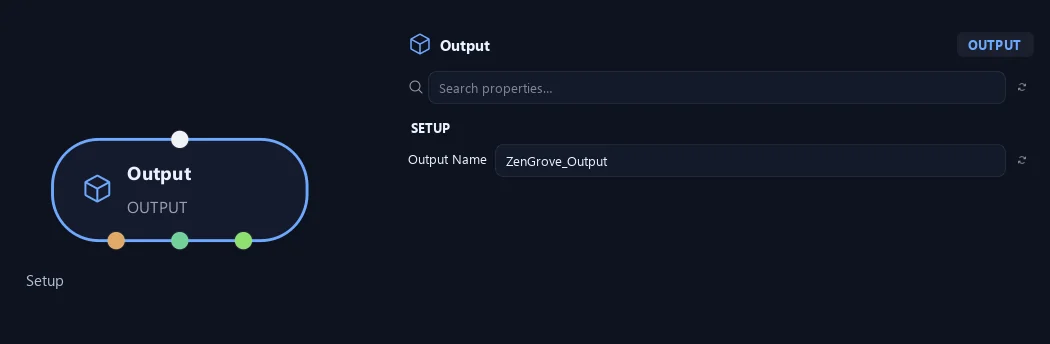
- Output Name
Gives this tree, collection or output a recognizable name.
Preview & Safety
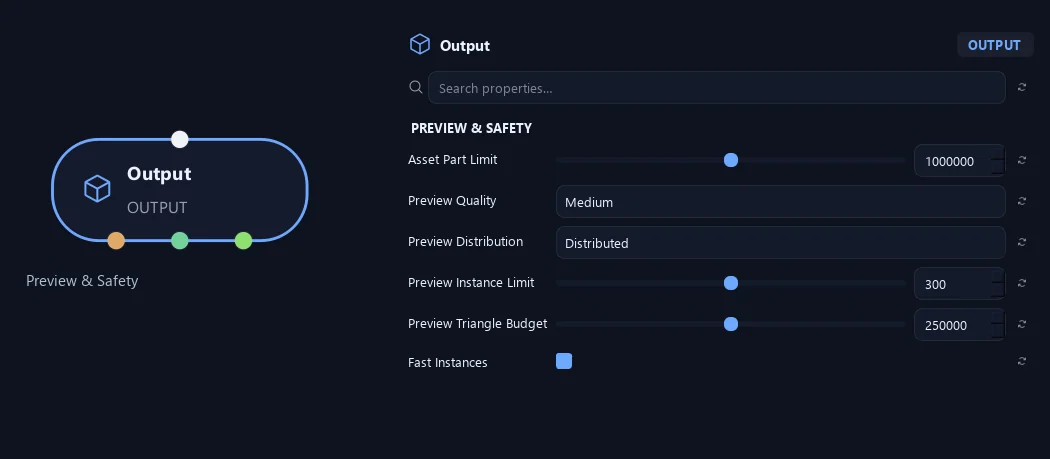
- Asset Part Limit
Maximum terminal asset occurrences after expanding nested arrays and assemblies, including downstream copies. Checked before allocating Maya geometry; default 1,000,000. Reduce variants, counts or placements if the limit is exceeded.
- Preview Quality
Chooses preview detail. Lower quality helps quicker adjustments; High uses more detail.
- Preview Distribution
Distributed spreads the preview across the crown. Random samples randomly. Full requests all placements, subject to preview limits.
- Preview Instance Limit
Limits placed objects shown in a preview.
- Preview Triangle Budget
Limits asset triangles in the preview. Heavy source meshes fit fewer placements within the budget.
- Fast Instances
Speeds up large collections of direct mesh assets by sharing shapes in groups of 128. Leaves remain individually selectable. Edit the source mesh to update every group; component edits on generated leaves affect their group only. Hierarchies use ordinary instances.
Asset Preview
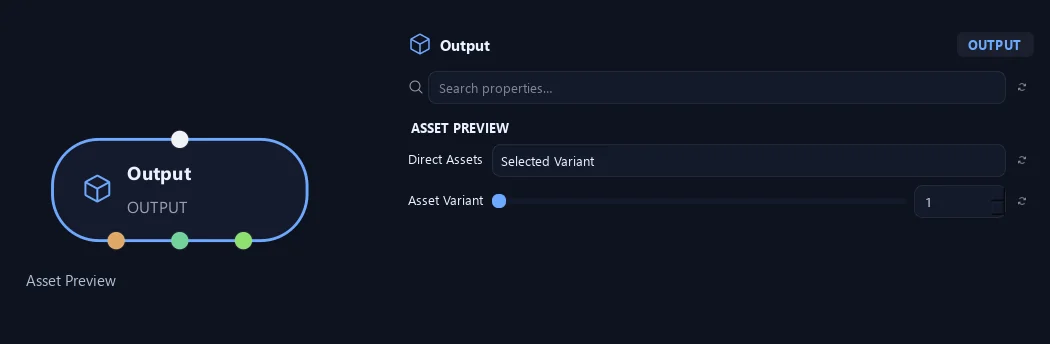
- Direct Assets
Controls the collection connected directly to the Assets input: Selected Variant outputs one source; All Variants lays out every source along positive X. These settings affect the build/export as well as its preview and do not change foliage arriving through Growth.
- Asset Variant
One-based source or assembly variant to output from the directly connected Assets collection. The number must exist. An entire nested assembly counts as one selectable source.
Available when Direct Assets is Selected Variant.
Geometry
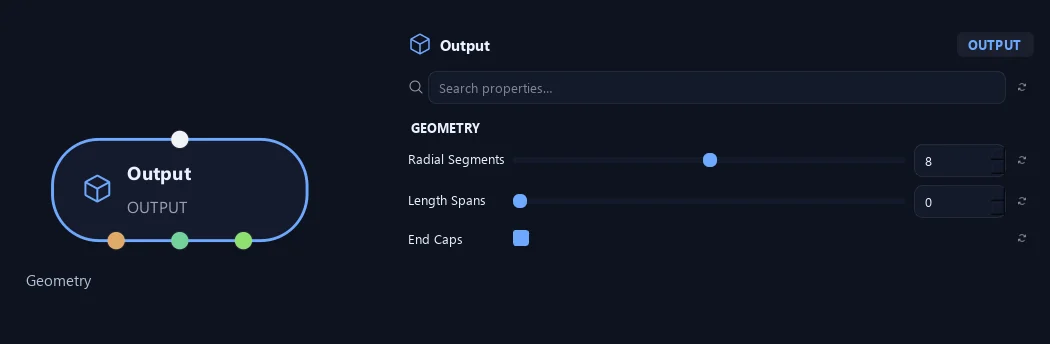
- Radial Segments
Sets fallback tube sides for branches without their own resolution.
- Length Spans
Sets fallback length spans. Zero keeps generator spans. Resolution overrides take priority.
- End Caps
Closes free branch tips and the bases of parentless branches.
Uv & Textures
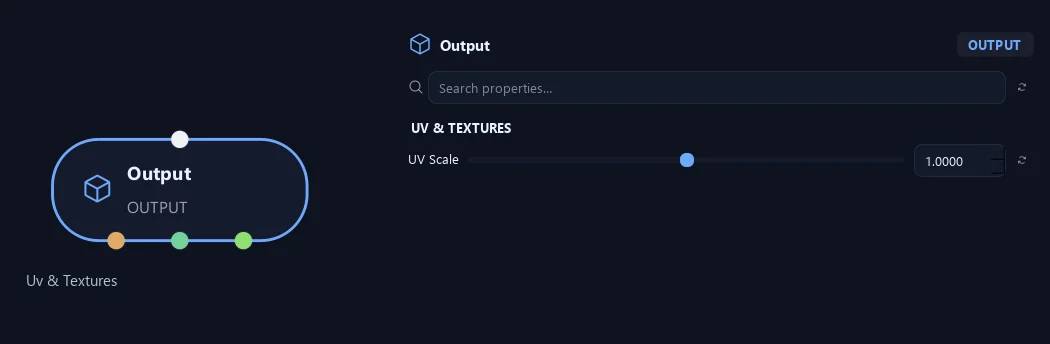
- UV Scale
Scales output UVs, changing texture size on the geometry.
Export
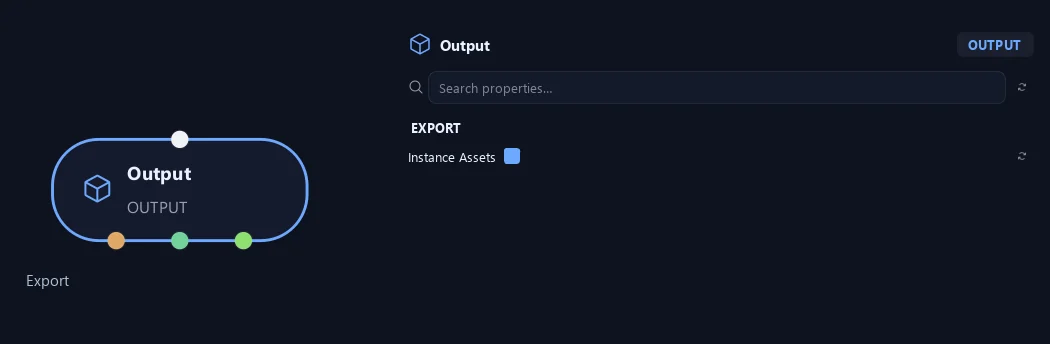
- Instance Assets
Uses shared Maya instances in the final build. Off creates separate copies. Previews always use shared instances.
Advanced
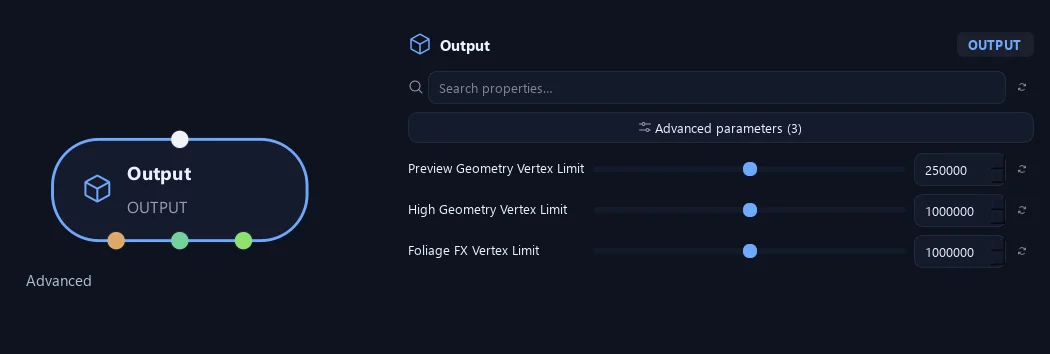
- Preview Geometry Vertex Limit
Stops a preview if estimated branch geometry exceeds this vertex count.
- High Geometry Vertex Limit
Limits estimated branch-geometry vertices in a High build.
- Foliage FX Vertex Limit
Limits foliage vertices created for leaf droop or transferred normals in High builds.
Asset Preview
Shown example: Direct Assets = All Variants.
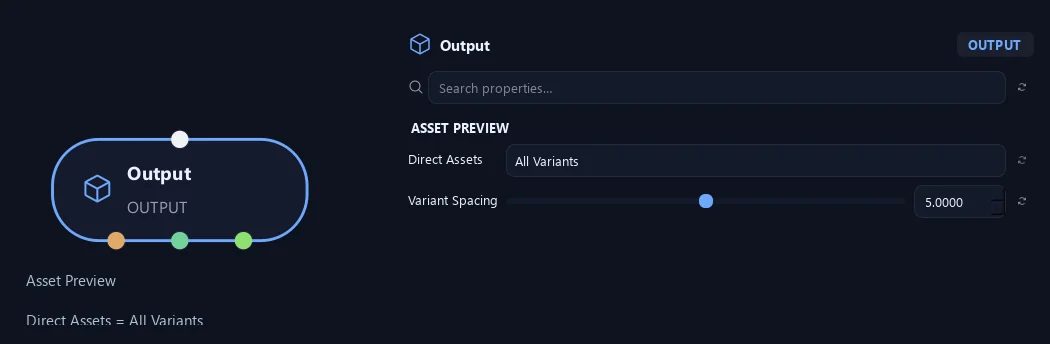
- Direct Assets
Controls the collection connected directly to the Assets input: Selected Variant outputs one source; All Variants lays out every source along positive X. These settings affect the build/export as well as its preview and do not change foliage arriving through Growth.
- Variant Spacing
Distance along X between directly connected sources when All Variants is selected. Zero overlays their origins. This also sets their layout in the resulting build or export.
Available when Direct Assets is All Variants.
What is ZenGrove used for?
The ZenGrove 1.0.0 reference: 52 nodes, 907 settings and short WebM demos. Explore Look At asset orientation, GameDynamics, joint previews, skeletal export and per-leaf random vertex colors. Requires AO.Hub 1.6.6 or later.
Which host application does ZenGrove support?
ZenGrove is built for Autodesk Maya and is distributed through AO Studio Tools.
Where can I download ZenGrove?
Download the current AO Studio Tools package from https://aostudio.tools/getthetools.html and install it through AO.Hub.