
ZenGrove
Built to move. Down to the last leaf.
Built to move. Down to the last leaf.
The ZenGrove 1.0.0 reference: 52 nodes, 907 settings and short WebM demos. Explore Look At asset orientation, GameDynamics, joint previews, skeletal export and per-leaf random vertex colors. Requires AO.Hub 1.6.6 or later.
Leaves
Attaches leaf meshes to branches. Arrange patterns, adjust orientation, add droop and optionally reduce overlapping leaves in a static build.
Branches · Assets
Growth
Count Variation changes the requested number per parent. In Count mode, Distribution Profile moves sites without thinning the count. Density Profile instead multiplies density over physical branch length: 0 makes an empty region, 0.5 gives half density, and 1 keeps Density per Unit. The allowed Distribution Range and volume restrict where density is integrated.
Opposite counts sites with two leaves each. Whorled counts sites with Whorl Count leaves each: Count 8 × Whorl Count 3 produces 24 leaves before collision filtering and output limits. Labels show Sites per Parent or Sites per Unit for these modes. Parallel retains its individual-leaf count convention.
Length scales asset X, Width scales Z and Thickness scales Y, on top of uniform Scale. Each dimension has independent randomness and a base-to-tip profile. Thickness scales existing geometry; it does not give a flat card new thickness. Twist (Along Branch) rotates attachment patterns. Branch Up and Free follow the local twist; World Up keeps the leaf face aligned to the world.
Avoid Leaf Collision checks the combined foliage at Output before preview limits, using conservative boxes around the source meshes including droop. Transparent card areas still occupy space. Leaves rotate around their existing pivots; Skip removes unresolved overlaps and Keep retains them. Disabled foliage remains in place as an obstacle. Active Dynamics and avoidance cannot be combined. Refresh captured assets after editing their source geometry.
Choose World Up to make Up / Down an absolute elevation: −90° down, 0° horizontal and +90° up. Choose Branch Up when the foliage should follow the carrier’s local frame and twist.
Watch the Leaves settings tour
Current Maya controls, including conditional settings. Each view stays on screen for one second (three views take three seconds); pause or choose a group to inspect it.
Affect
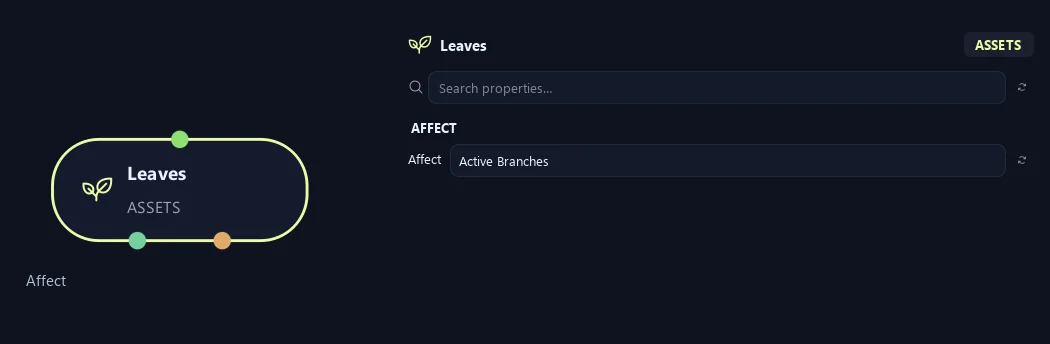
- Affect
Chooses which branches are affected. Active Branches uses the latest generated layer. Active + Descendants also includes growth from that layer. Active Generated Hierarchy additionally includes ancestors created by that same generated contribution. Entire Input uses everything arriving here. Attached children follow a moved parent even when they are not reshaped themselves.
Setup
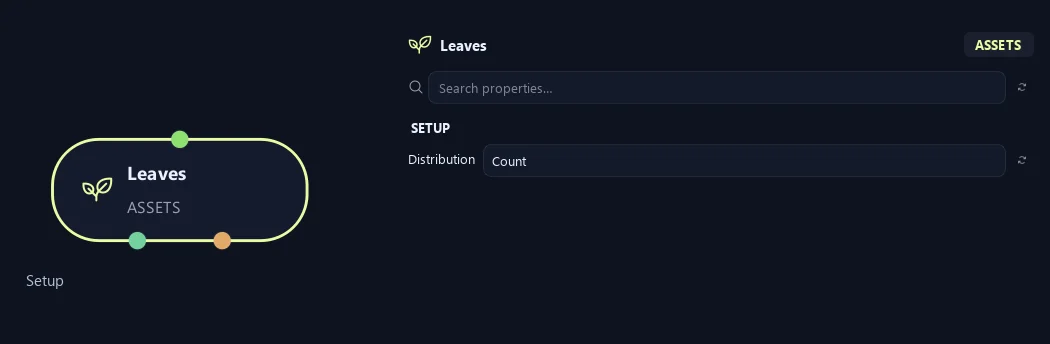
- Distribution
Count sets leaves per parent. Density uses eligible branch length.
Generation
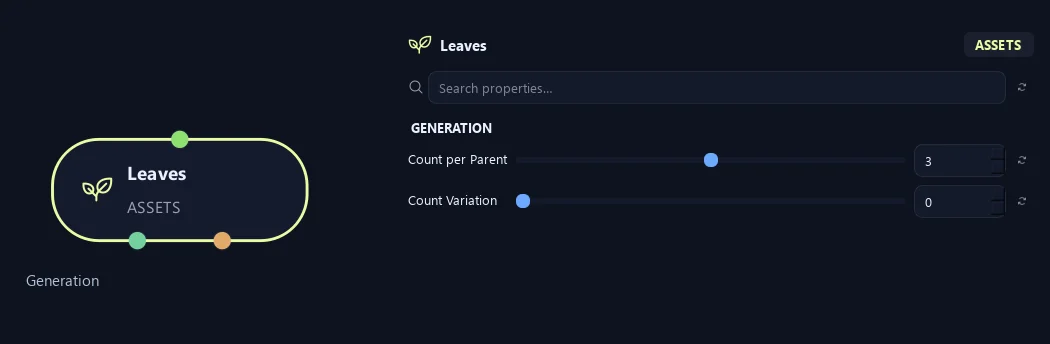
- Count per Parent
Opposite/Whorled count sites per parent; every site has 2/Whorl Count leaves. Other patterns count individual leaves.
Available when Distribution is Count.
- Count Variation
Seeded plus/minus variation per parent in Count mode. Opposite/Whorled vary complete sites.
Available when Distribution is Count.
Distribution (1)
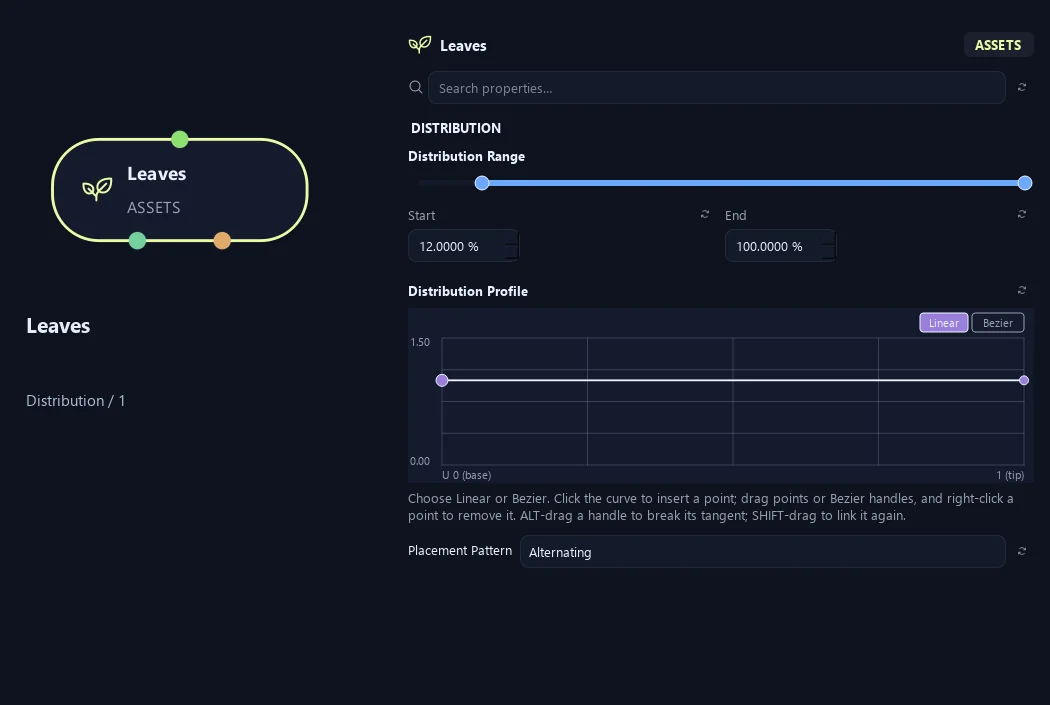
- Distribution Range — Start %
Sets where placement begins on the parent. Zero is the base and one is the tip; the range slider displays percentages.
- Distribution Range — End %
Sets where placement ends. Together with Start, this defines the Distribution Range.
- Distribution Profile
Redistribute the requested Count along the carrier without thinning it. Base 0, tip 1. Flat and all-zero curves retain ordinary placement.
Available when Distribution is Count.
- Placement Pattern
Random distributes freely. Parallel creates opposing pairs at one position. Alternating walks along the carrier and switches sides. Opposite counts complete pairs; Whorled counts radial groups. Both use the parent frame.
Distribution (2)
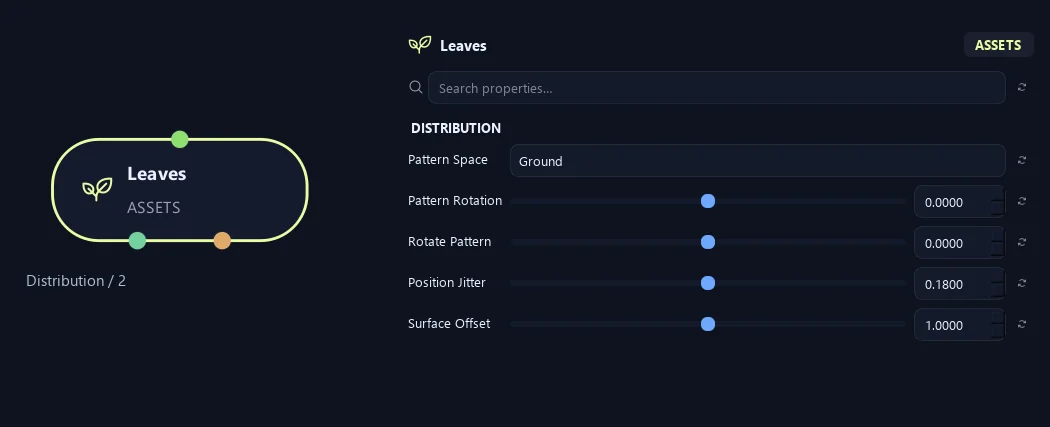
- Pattern Space
Ground constrains only the side-placement pattern to world XZ. Parent rotates that pattern locally around the carrier. Along Branch Twist then rotates this pattern at each attachment; neither option replaces the selected Up Alignment.
Available when Placement Pattern is Random or Parallel or Alternating.
- Pattern Rotation
Rotates the whole arrangement around the parent without choosing new random positions.
- Rotate Pattern
Rotates successive leaf positions around the branch. Zero keeps a stable pair direction.
- Position Jitter
Loosens spacing along the parent while keeping paired sites together.
- Surface Offset
Moves pivots from the branch center toward its surface. Zero uses the centerline; one reaches the surface.
Orientation (1)
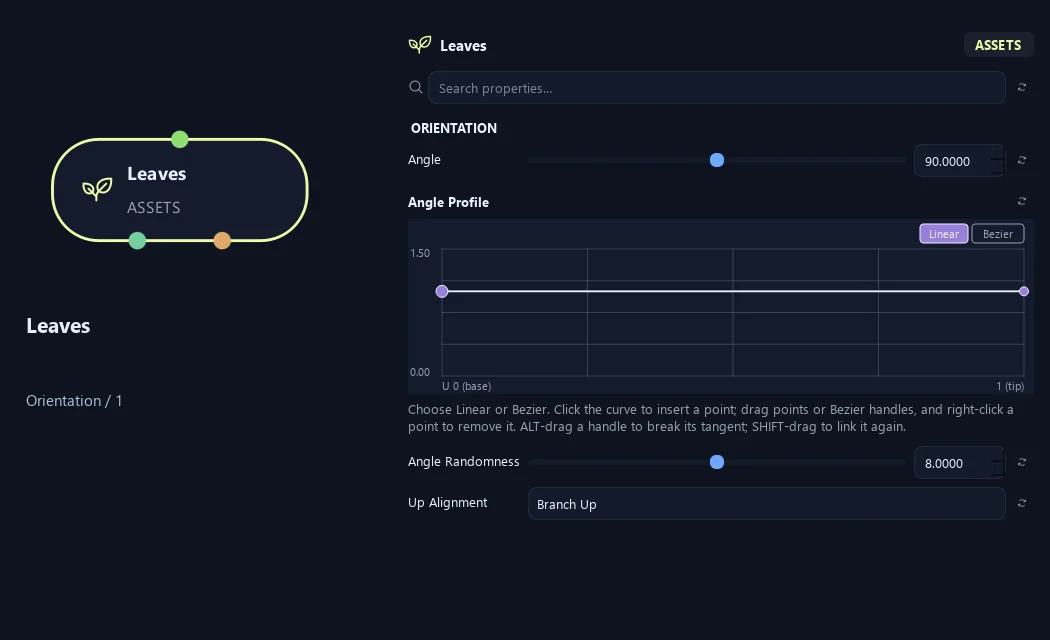
- Angle
Sets leaf angle from the parent direction. Zero follows the branch; 90 degrees grows outward.
- Angle Profile
Multiplies Angle by attachment position on the parent: left is base and right is tip. One keeps the angle, lower values close it and higher values open it.
- Angle Randomness
Varies the angle between branches or leaves. Zero keeps it consistent.
- Up Alignment
World Up uses Up / Down as elevation from the ground plane. Branch Up follows the carrier’s local frame and Along Branch Twist. Free uses a stable, unconstrained frame.
Orientation (2)
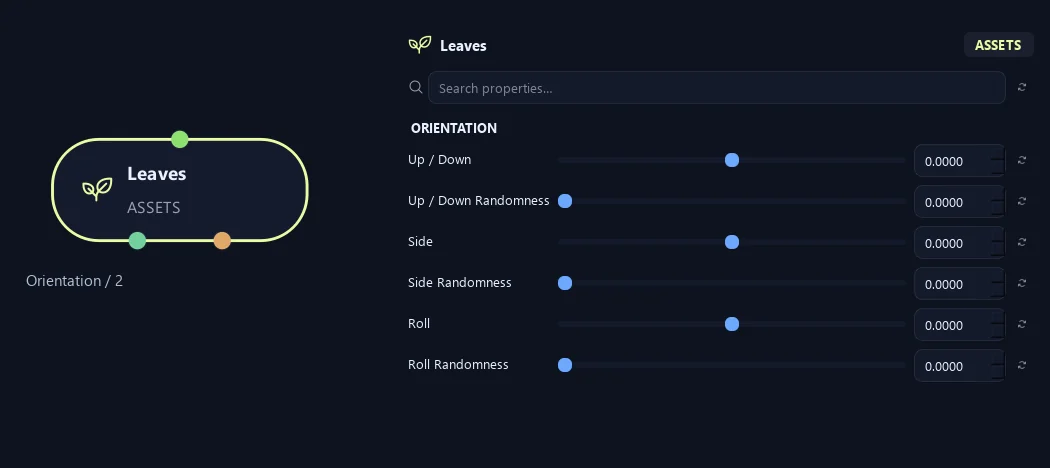
- Up / Down
With World Up, this is elevation from the ground plane: −90° points down, 0° is horizontal and +90° points up. Other alignment modes rotate around the local leaf width axis; negative values let the tip hang.
- Up / Down Randomness
Varies up/down tilt between placements.
- Side
Turns the asset sideways in its local orientation.
- Side Randomness
Varies sideways angle between placements.
- Roll
Rolls the asset around its length direction.
- Roll Randomness
Varies roll between placements.
Deformation
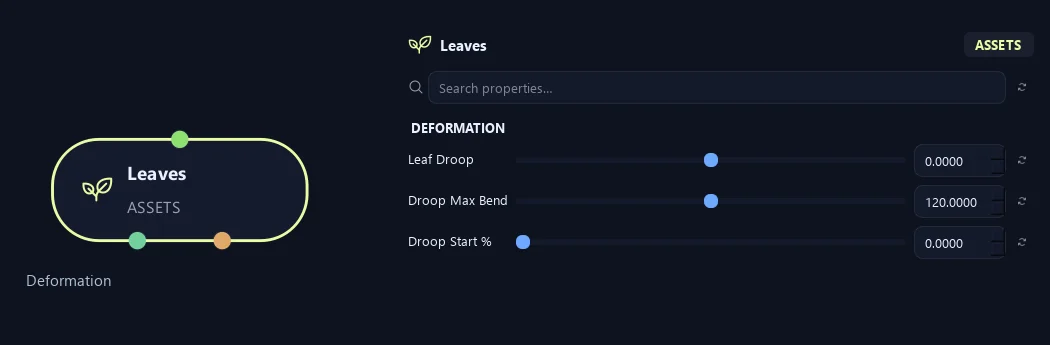
- Leaf Droop
Bends toward world gravity while preserving centerline length and the leaf base. Zero keeps shared instances; non-zero values are realized in High-quality builds. Negative values bend upward.
- Droop Max Bend
Maximum tip bend in degrees, also limited by the direction of gravity; longer leaves approach this limit sooner.
- Droop Start %
Keeps the leaf base rigid before droop starts. Zero lets it start at the base.
Scale (1)
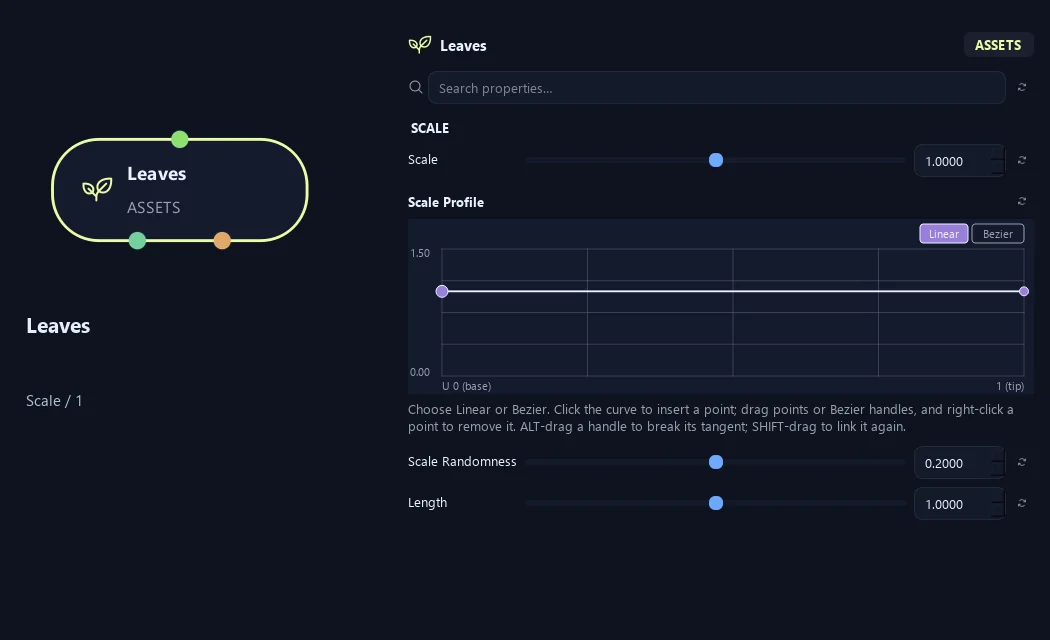
- Scale
Scales the asset or generated child uniformly. One keeps its size; 0.5 halves it.
- Scale Profile
Multiplies asset size across the distribution range. Left is Start and right is End. One keeps size; zero reduces it to nothing at that point.
- Scale Randomness
Varies size between placements. Zero keeps one scale multiplier.
- Length
Length multiplier on the authored asset local X axis, in addition to uniform Scale.
Scale (2)
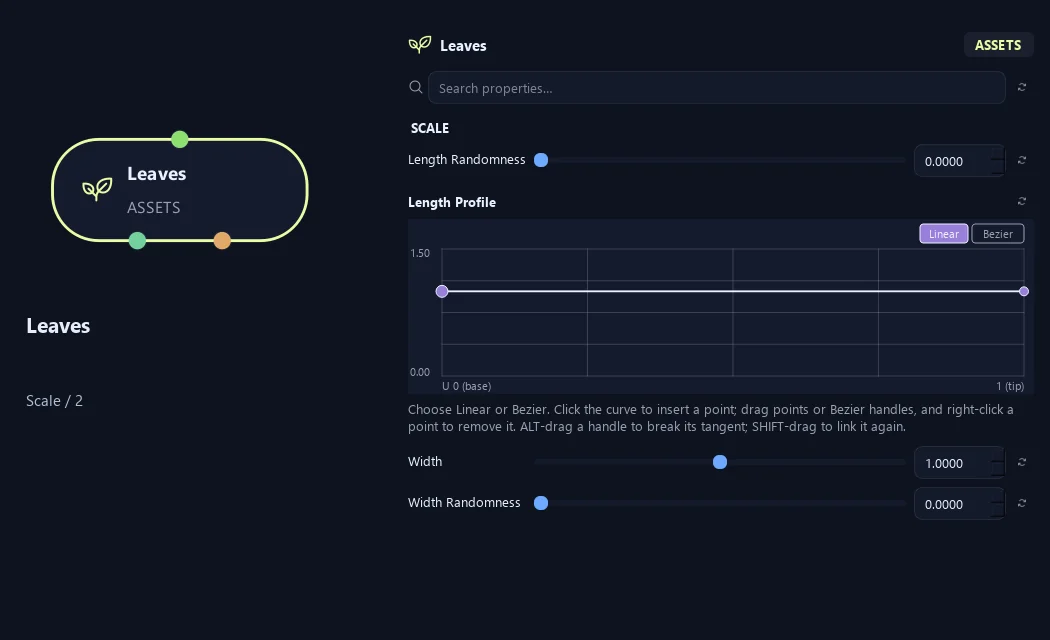
- Length Randomness
Adds independent, seeded plus/minus variation to asset length. A value of 0.25 varies this dimension by up to 25% without changing placement or asset selection.
- Length Profile
Length multiplier along the carrier, base 0 to tip 1.
- Width
Width multiplier on the authored asset local Z axis, in addition to uniform Scale.
- Width Randomness
Adds independent, seeded plus/minus variation to asset width. A value of 0.25 varies this dimension by up to 25% without changing placement or asset selection.
Scale (3)
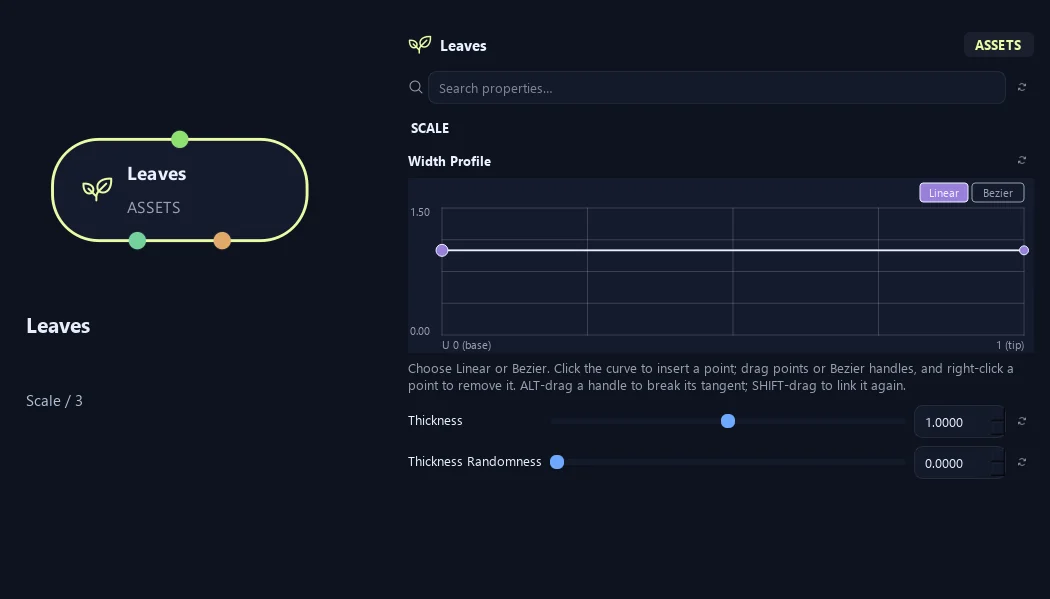
- Width Profile
Width multiplier along the carrier, base 0 to tip 1.
- Thickness
Thickness multiplier on the authored asset local Y axis, in addition to uniform Scale.
- Thickness Randomness
Adds independent, seeded plus/minus variation to asset thickness. A value of 0.25 varies this dimension by up to 25% without changing placement or asset selection.
Scale (4)
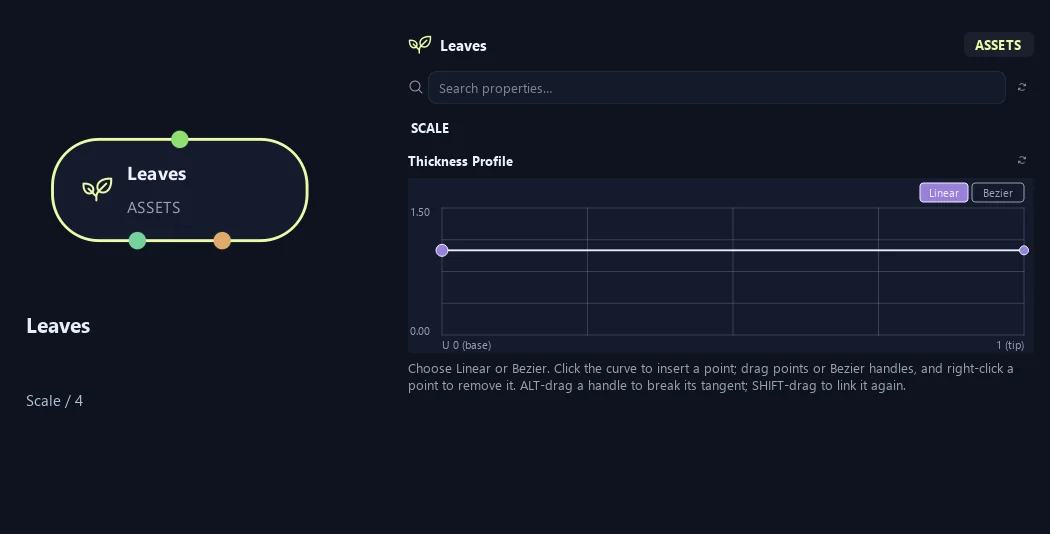
- Thickness Profile
Thickness multiplier along the carrier, base 0 to tip 1.
Collision
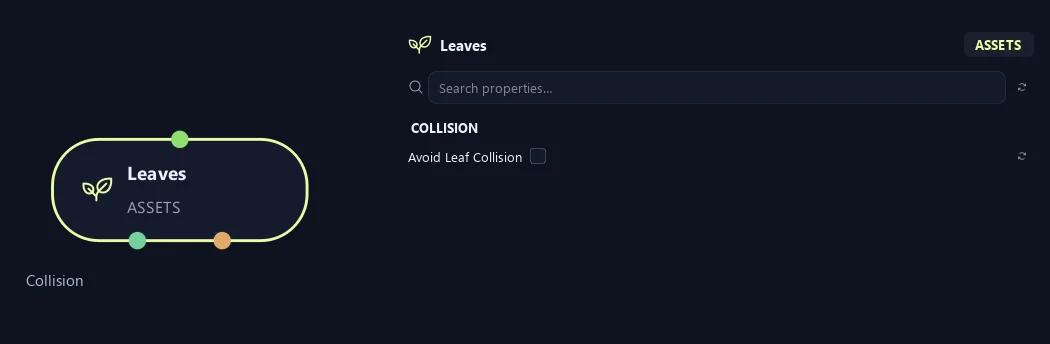
- Avoid Leaf Collision
Tries to turn overlapping leaves apart at Output or Game Output. Leaf attachment positions and sizes stay fixed. This works on static foliage; mute or disable Dynamics before enabling it. Off keeps the original placements.
Advanced
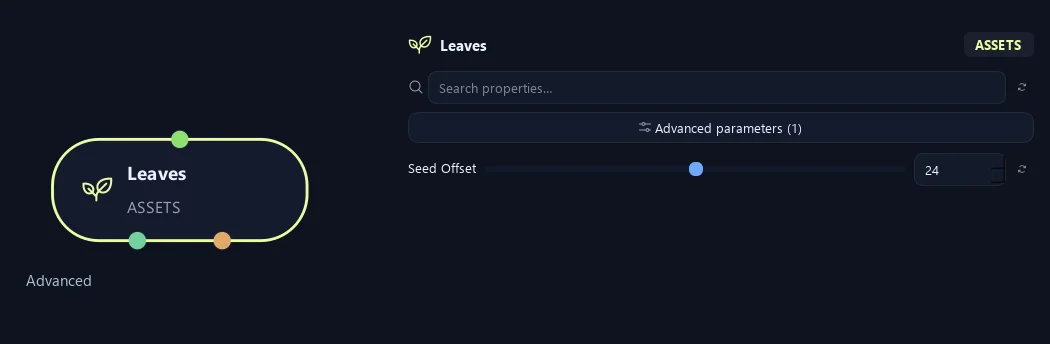
- Seed Offset
Changes this node's random variation. Keep the seed and settings unchanged to reproduce the same result.
Generation
Shown example: Distribution = Density.
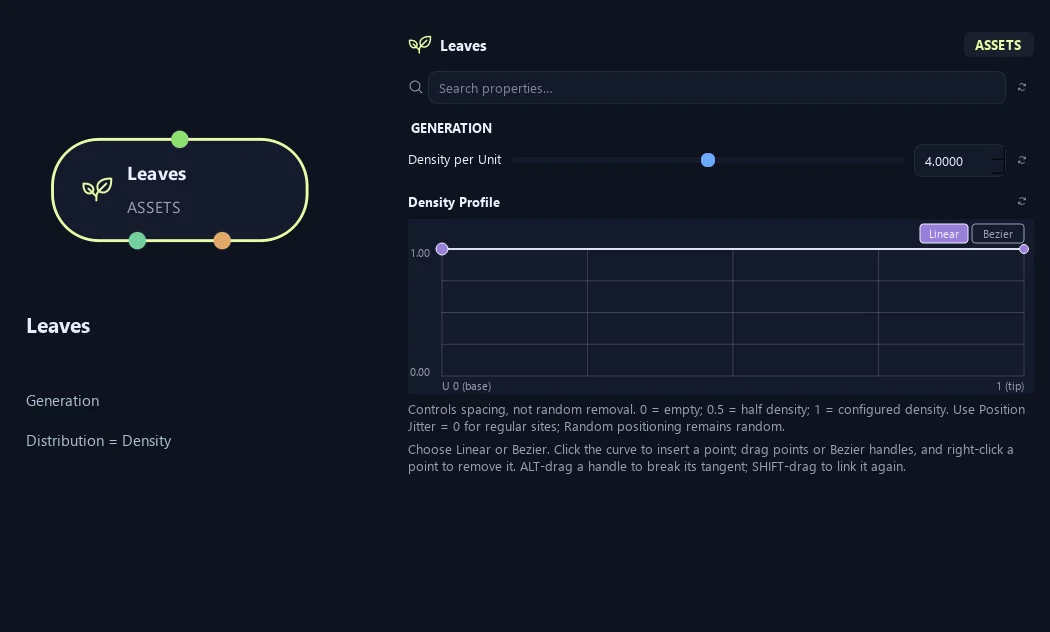
- Density per Unit
Sets placements per unit of eligible branch length. Longer branches receive more.
Available when Distribution is Density.
- Density Profile
Local Density per Unit multiplier from carrier base (0) to tip (1). Controls spacing over the physical length inside Distribution Range and the optional volume. Zero leaves empty regions; 0.5 gives half density.
Available when Distribution is Density.
Distribution (1)
Shown example: Placement Pattern = Whorled.
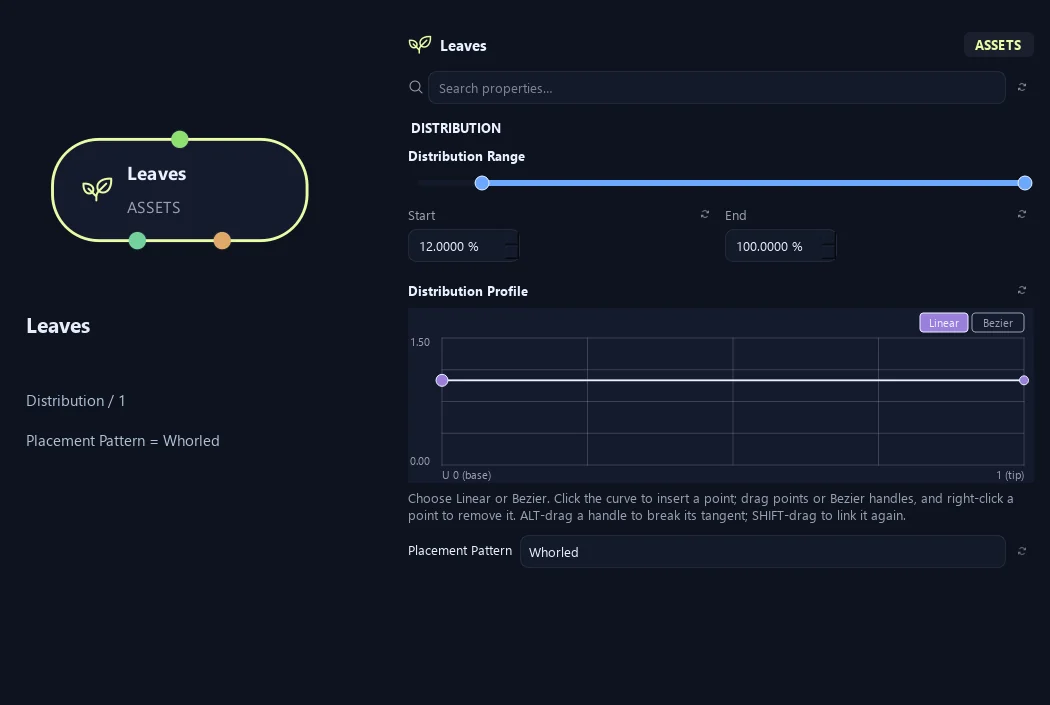
- Distribution Range — Start %
Sets where placement begins on the parent. Zero is the base and one is the tip; the range slider displays percentages.
- Distribution Range — End %
Sets where placement ends. Together with Start, this defines the Distribution Range.
- Distribution Profile
Redistribute the requested Count along the carrier without thinning it. Base 0, tip 1. Flat and all-zero curves retain ordinary placement.
Available when Distribution is Count.
- Placement Pattern
Random distributes freely. Parallel creates opposing pairs at one position. Alternating walks along the carrier and switches sides. Opposite counts complete pairs; Whorled counts radial groups. Both use the parent frame.
Distribution (2)
Shown example: Placement Pattern = Whorled.
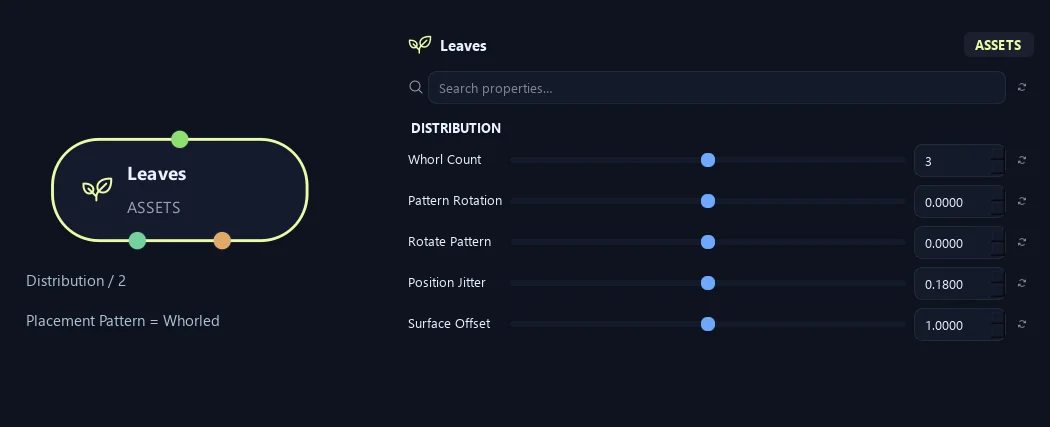
- Whorl Count
Leaves per site in Whorled. Opposite always creates two.
Available when Placement Pattern is Whorled.
- Pattern Rotation
Rotates the whole arrangement around the parent without choosing new random positions.
- Rotate Pattern
Rotates successive leaf positions around the branch. Zero keeps a stable pair direction.
- Position Jitter
Loosens spacing along the parent while keeping paired sites together.
- Surface Offset
Moves pivots from the branch center toward its surface. Zero uses the centerline; one reaches the surface.
Collision
Shown example: Avoid Leaf Collision = On.
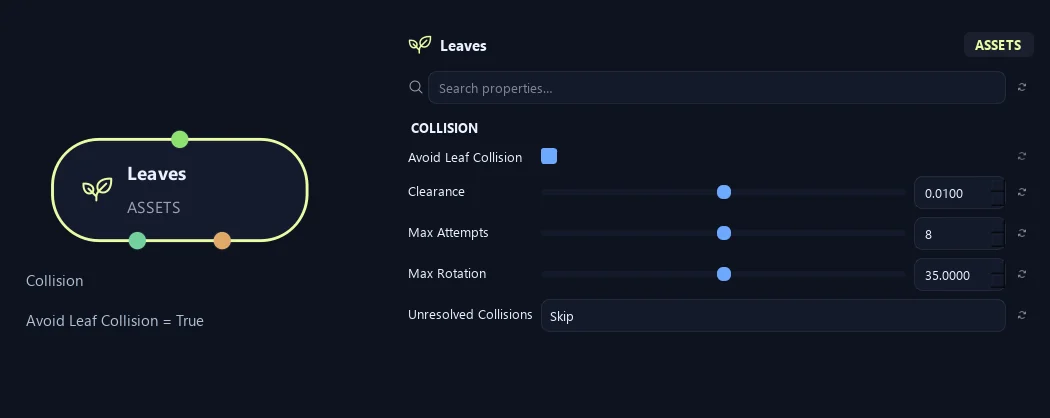
- Avoid Leaf Collision
Tries to turn overlapping leaves apart at Output or Game Output. Leaf attachment positions and sizes stay fixed. This works on static foliage; mute or disable Dynamics before enabling it. Off keeps the original placements.
- Clearance
Adds breathing room between the simple boxes used to check leaf overlap, in Maya scene units. Larger values create more space and may leave fewer leaves when Unresolved Collisions is set to Skip.
Available when Avoid Leaf Collision is On.
- Max Attempts
Sets how many extra rotations ZenGrove tries for each overlapping leaf, up to 32. More attempts can find a fit but take longer. Zero makes no rotation attempts; Skip or Keep then decides what happens to overlaps.
Available when Avoid Leaf Collision is On.
- Max Rotation
Limits how far a leaf may turn around its existing attachment point, in degrees, from 0 to 90. Smaller values protect the original orientation; larger values give leaves more room to find a fit.
Available when Avoid Leaf Collision is On.
- Unresolved Collisions
Skip omits leaves that still overlap after the attempts, so the result may be less dense. Keep retains them and reports the remaining overlaps in the build status.
Available when Avoid Leaf Collision is On.
What is ZenGrove used for?
The ZenGrove 1.0.0 reference: 52 nodes, 907 settings and short WebM demos. Explore Look At asset orientation, GameDynamics, joint previews, skeletal export and per-leaf random vertex colors. Requires AO.Hub 1.6.6 or later.
Which host application does ZenGrove support?
ZenGrove is built for Autodesk Maya and is distributed through AO Studio Tools.
Where can I download ZenGrove?
Download the current AO Studio Tools package from https://aostudio.tools/getthetools.html and install it through AO.Hub.