Studio Tools
Virtual Camera v1.0.0

Virtual Camera

Turn your phone into a lightweight Maya handheld camera over the same local network.

Version 1.0.0
Quick Start
  • Create the VCam rig in Maya.
  • Start the session and scan the QR code.
  • Drive the camera from your phone over the same WLAN.
  • Record a take and stabilize it if needed.
Touch is the default workflow. Motion sensors may require HTTPS on the phone browser.
Overview v1.0.0

Turn your phone into a lightweight Maya handheld camera over the same local network.

Virtual Camera connects a phone browser to Maya for touch and motion-driven camera operation, live mobile preview, QR-based session launch, direct take recording, and post-pass camera stabilization.

Features

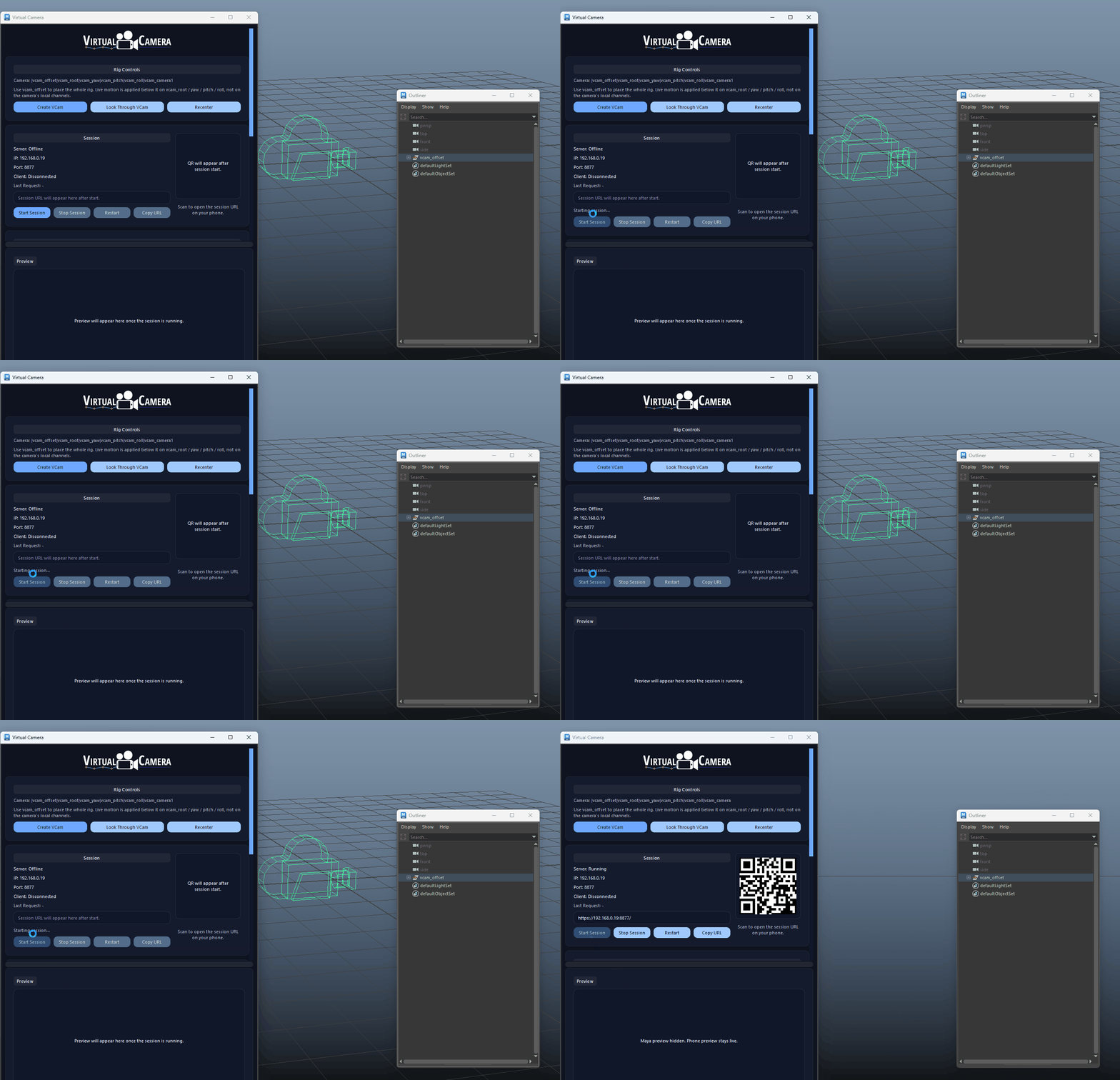
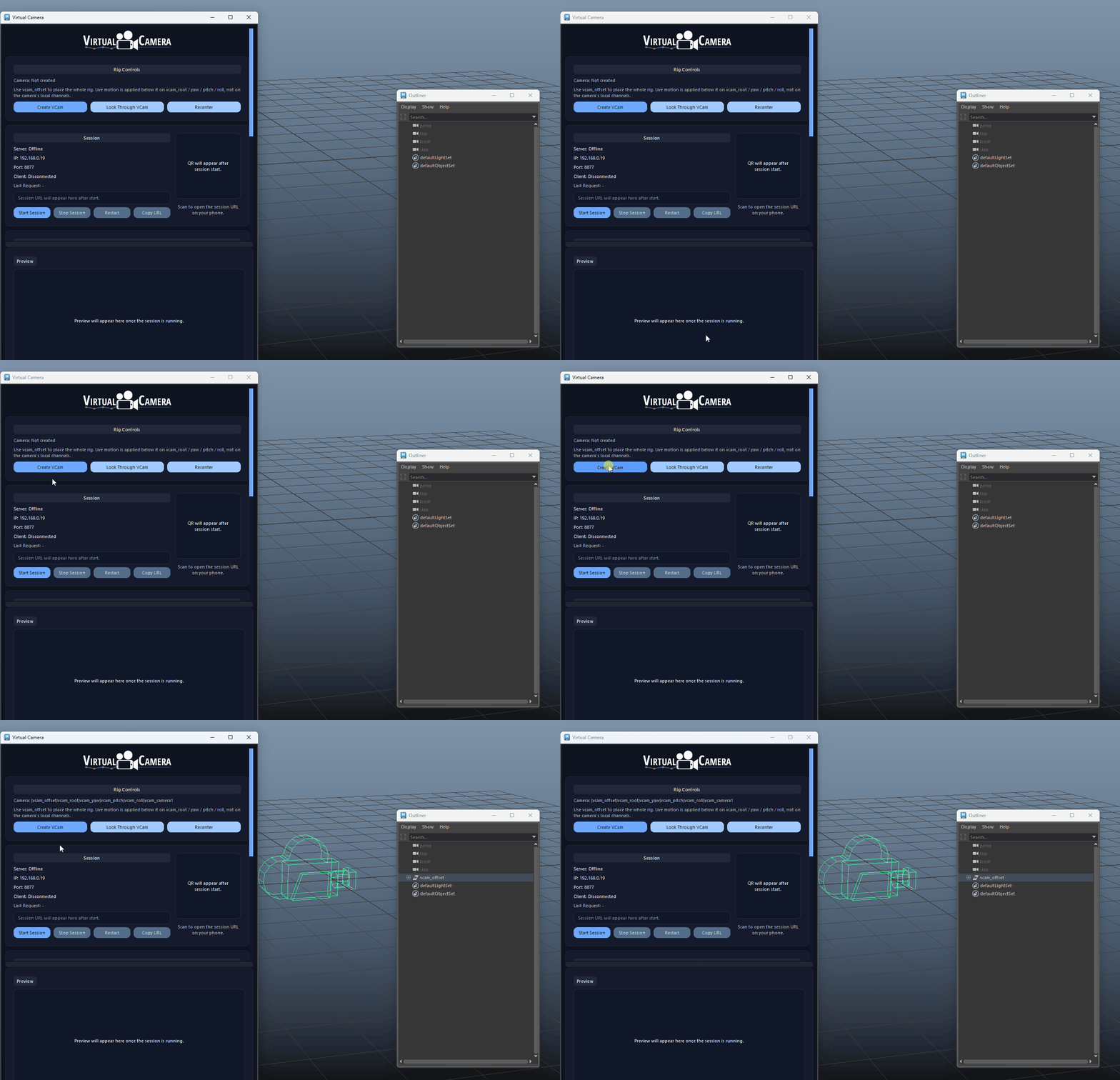
Create A Dedicated Virtual Camera Rig

Builds a production-friendly camera hierarchy with vcam_offset for shot placement and separate handheld controls for translate, yaw, pitch, roll, and focal length.

  • Use vcam_offset to place the full camera in the shot before recording handheld motion.
  • Live phone input is applied below the offset group so you can keep a clean scene-level placement.
Create A Dedicated Virtual Camera Rig demo

Start A Phone Session Over The Local Network

Launches a lightweight local server in Maya so your phone can connect through the same WLAN and drive the camera in real time.

  • Phone and workstation must be on the same local network.
  • Use Restart after changing the port or HTTPS state.
Start A Phone Session Over The Local Network demo

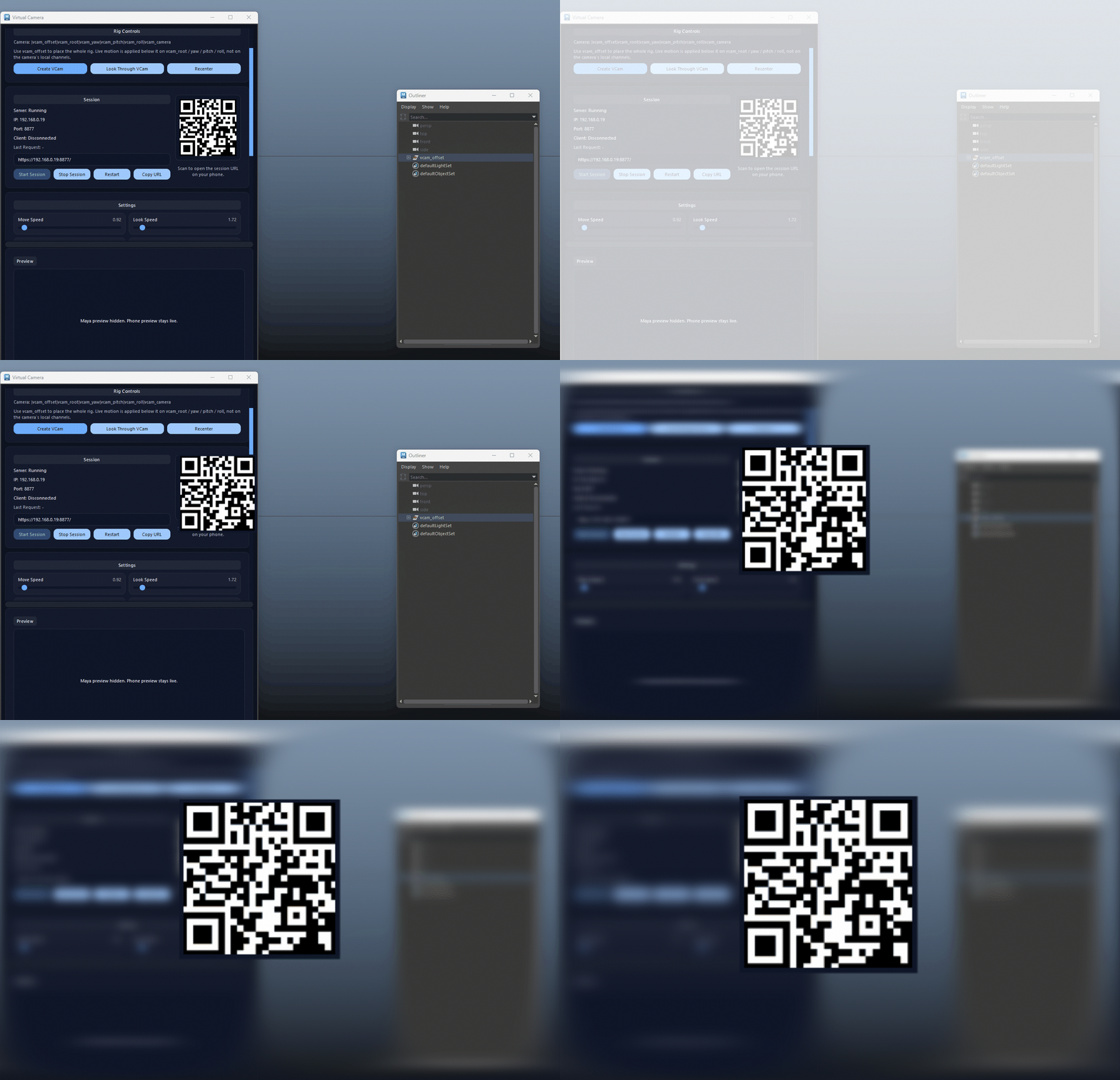
Connect Faster With QR

Generates a QR code next to the session controls so the phone can open the active control URL without typing the address manually.

  • If the QR cannot be fetched, the URL field can still be copied manually.
  • The QR refreshes automatically when the session URL changes.
Connect Faster With QR demo

Live Mobile Preview

Streams a lightweight JPEG preview to the phone browser so framing and timing can be judged directly from the handheld device.

  • Preview width and height can be lowered to reduce bandwidth and capture cost.
  • The phone preview remains the primary operator view even when the local Maya preview is hidden.
Live Mobile Preview demo

Touch Move, Lift, Look, Roll And FOV

The mobile UI supports dual-thumb camera driving, vertical lift, roll control, and focal length adjustment in a single fullscreen layout.

  • Move and lift are ideal for blocking rough handheld passes quickly.
  • Roll and FOV can be adjusted during the same take for more organic camera behavior.
Touch Move, Lift, Look, Roll And FOV demo

Optional Motion Sensor Camera Drive

Supported phones can use device orientation sensors for handheld yaw, pitch, and roll while touch remains available as the fallback workflow.

  • Use Motion and Zero on the phone before recording.
  • HTTPS is recommended or required on many mobile browsers before motion sensors become available.
Optional Motion Sensor Camera Drive demo

Portrait And Landscape Mount Modes

The web controller supports fixed mount modes so orientation mapping stays predictable whether the phone is held upright or sideways.

  • Pick the intended mount mode first, then use Zero to calibrate.
  • Use a fixed mount mode for a take instead of rotating the phone mid-shot.
Portrait And Landscape Mount Modes demo

Record Directly Into Maya

The REC action writes camera keys into Maya frame by frame across the playback range, with a phone-side countdown and automatic stop at the playback max frame.

  • Set your playback range before recording so the take stops exactly where you expect.
  • The countdown gives you time to place your thumbs before the recording begins.
Record Directly Into Maya demo

Post Operations With Camera Stabilization

After a take, Camera Stabilization can smooth the recorded camera channels and focal length without touching the higher-level vcam_offset placement.

  • Stabilize Last Take only affects the detected recorded range.
  • Lower values keep more handheld energy, while higher values create cleaner stabilized motion.
Post Operations With Camera Stabilization demo

HTTPS Support For Mobile Sensor Workflows

The Maya UI can prepare local development certificates so the phone session can run over HTTPS, which improves compatibility with mobile motion sensor APIs.

  • Install the generated root CA on the phone before testing motion over HTTPS.
  • If motion is unavailable, touch controls continue to work as the fallback.
HTTPS Support For Mobile Sensor Workflows demo

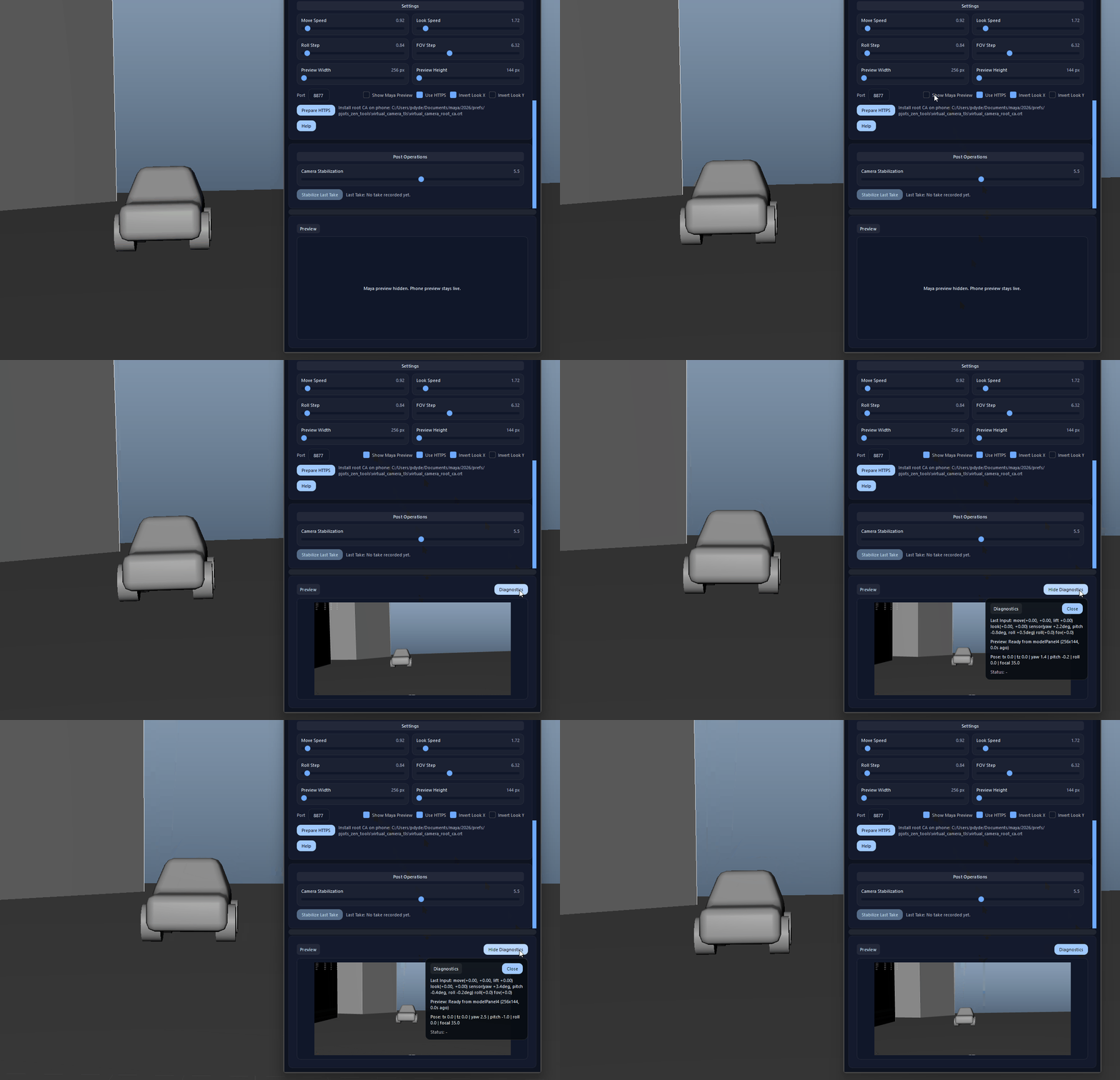
Optional Local Maya Preview And Diagnostics

The tool can mirror a local preview inside Maya and expose diagnostics for input, pose, preview state, and session status when deeper debugging is needed.

  • Hide the Maya preview when you want to focus on mobile operation or reduce overhead.
  • Open Diagnostics when validating phone input, rig response, or preview behavior.
Optional Local Maya Preview And Diagnostics demo

Live Settings Workflow

Connection, inversion, preview, and camera behavior settings apply automatically from the Maya UI without needing a separate Apply button.

  • Connection-related changes such as port and HTTPS may still require a restart of the active session.
  • Movement, look, roll, FOV, preview size, and stabilization values can be tuned as part of normal iteration.
Live Settings Workflow demo
FAQ

What is Virtual Camera used for?

Virtual Camera connects a phone browser to Maya for touch and motion-driven camera operation, live mobile preview, QR-based session launch, direct take recording, and post-pass camera stabilization.

Which host application does Virtual Camera support?

Virtual Camera is built for Autodesk Maya and is distributed through AO Studio Tools.

Where can I download Virtual Camera?

Download the current AO Studio Tools package from https://aostudio.tools/getthetools.html and install it through AO.Hub.