Studio Tools

ProTools

Modular N-Panel workflows and tool launcher for Pjot’s ZenTools.

Version 1.0.0
Overview v1.0.0

Modular N-Panel workflows and tool launcher for Pjot’s ZenTools.

ProTools manages panel-based workflows, lets you build custom N-Panel layouts from Python and MEL tools, and handles import/export of studio-wide tool configurations.

Features

Previous Panel (◀)

Steps to the previous saved panel (workflow) and loads its N-Panel layout, tools and UI preferences.

  • Use this to cycle through your saved workflows without opening any menus.
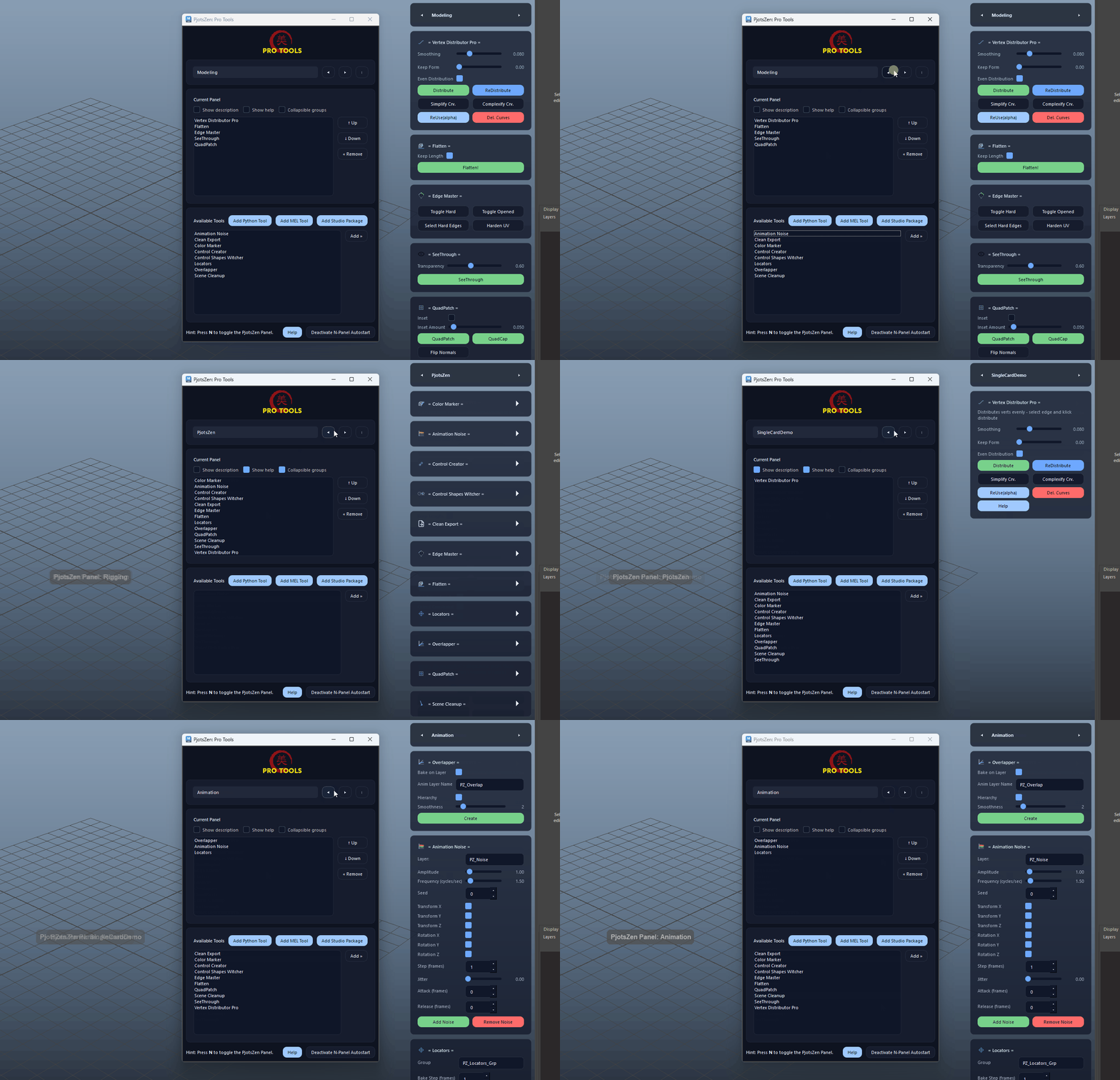
Previous Panel (◀) demo

Next Panel (▶)

Steps to the next saved panel (workflow) and applies its tool layout and preferences.
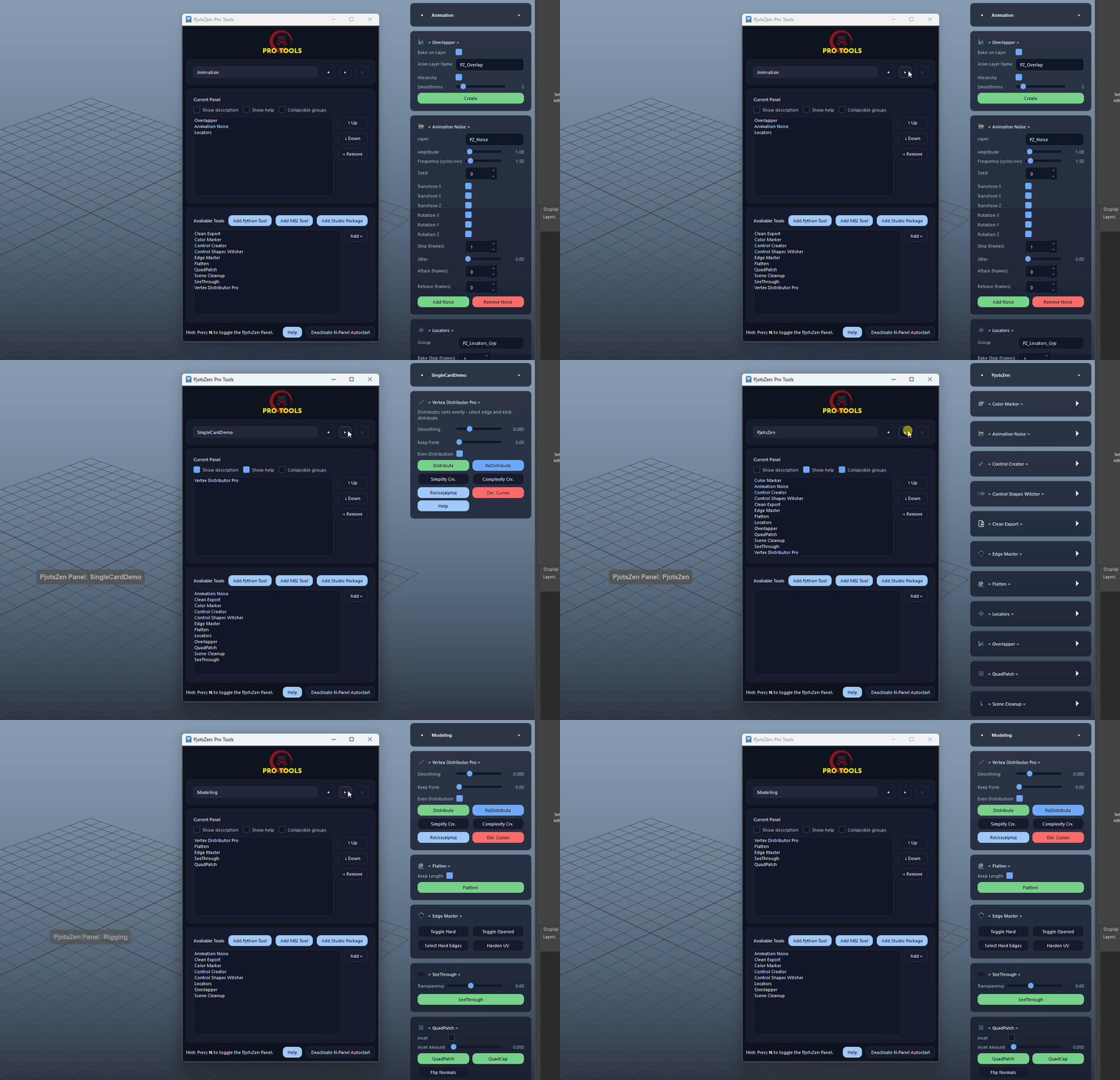
  • Combine Previous and Next to quickly jump between Modeling, Rigging, Animation layouts, etc.
Next Panel (▶) demo

Panel Menu – New Panel

PRO

Creates a brand new, empty panel with its own JSON config, tool list and UI preferences.
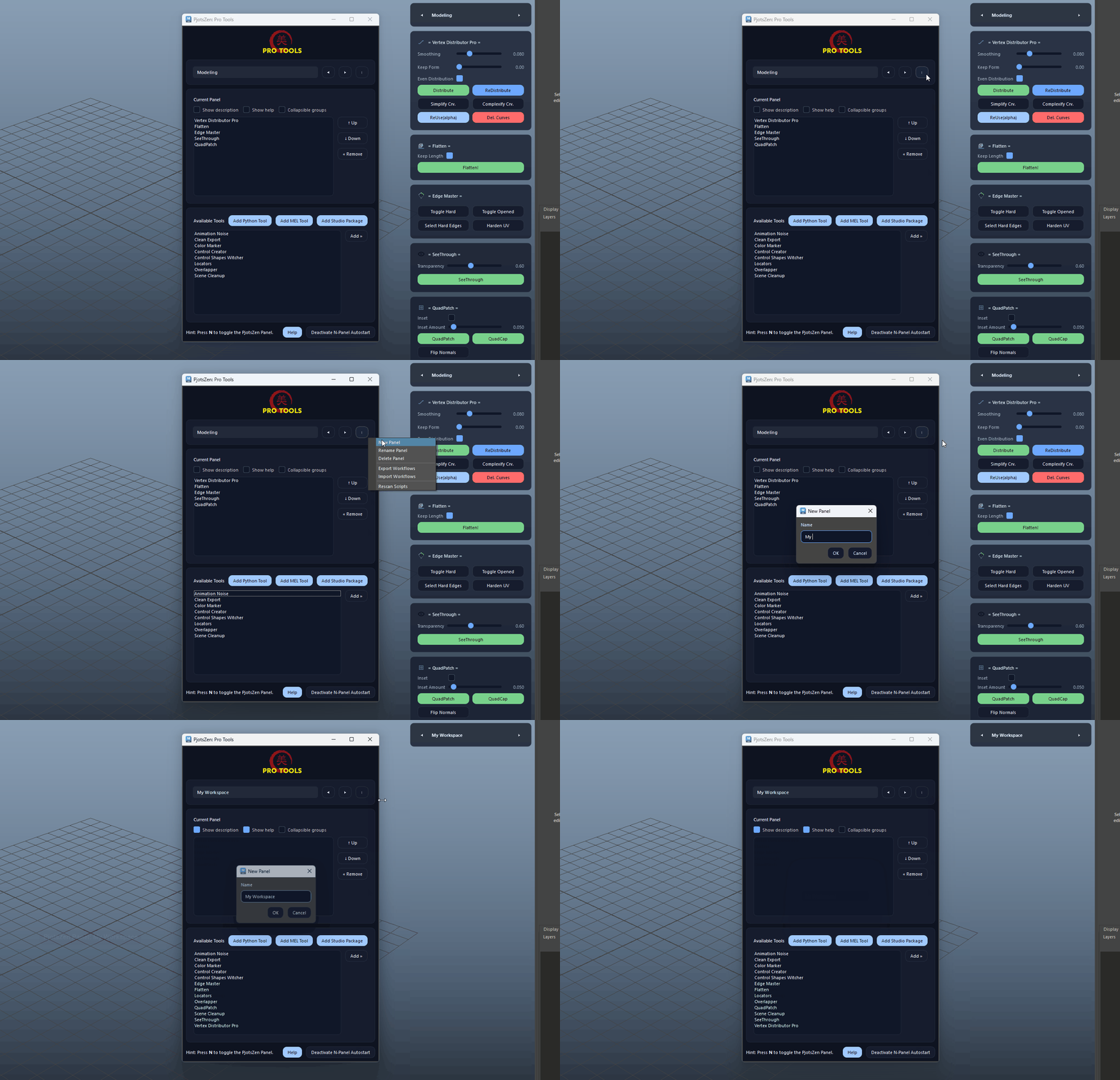
  • Use this when starting a fresh workflow layout from scratch.
Panel Menu – New Panel demo

Panel Menu – Rename Panel

PRO

Renames the current panel’s display name without changing any tools or preferences.
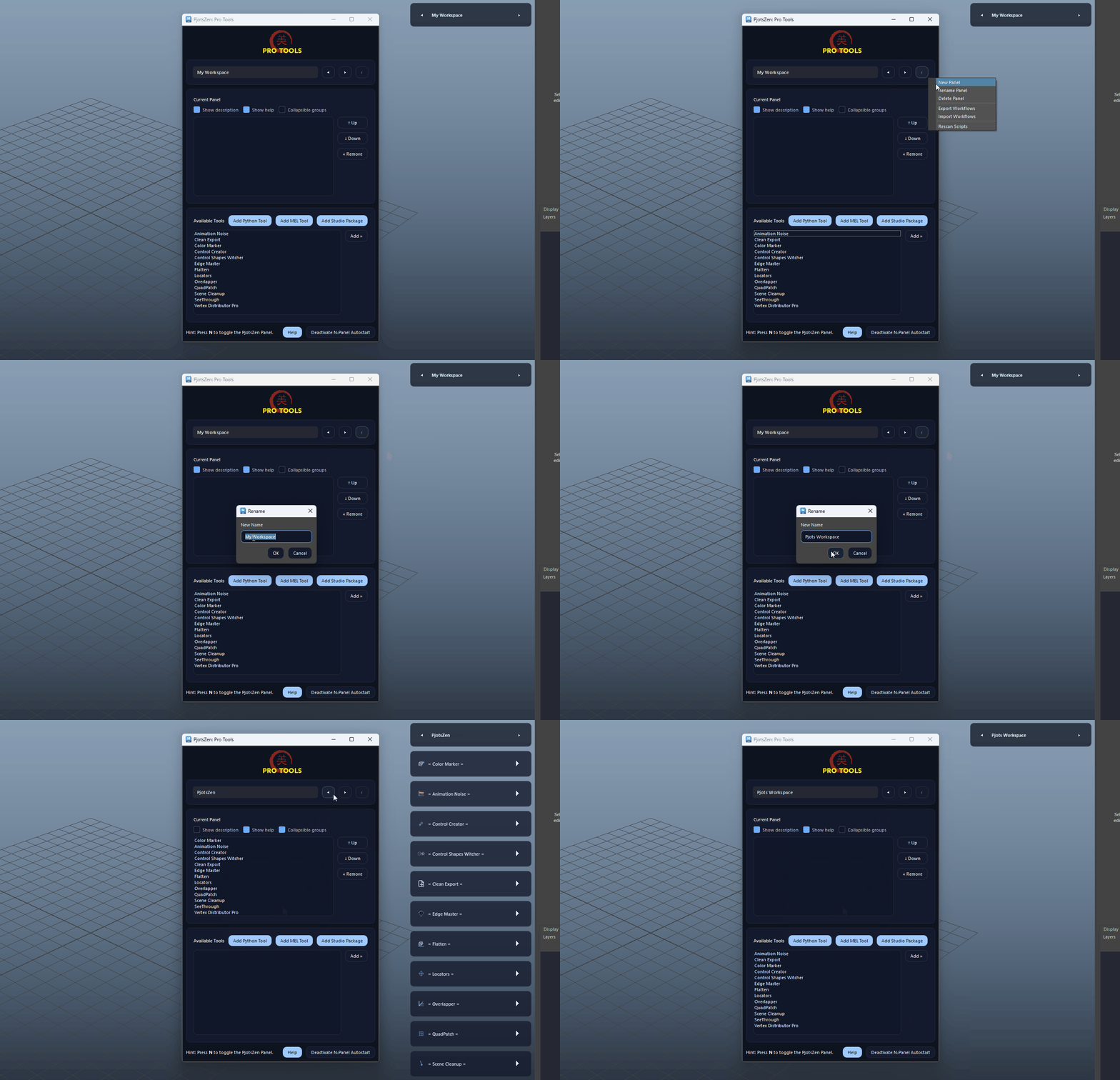
  • Clean up naming once a workflow becomes stable or is ready to share with others.
  • The new name will appear after the panel is refreshed to help reduce draw calls.
Panel Menu – Rename Panel demo

Panel Menu – Delete Panel

PRO

Removes the current panel and its JSON config from disk.
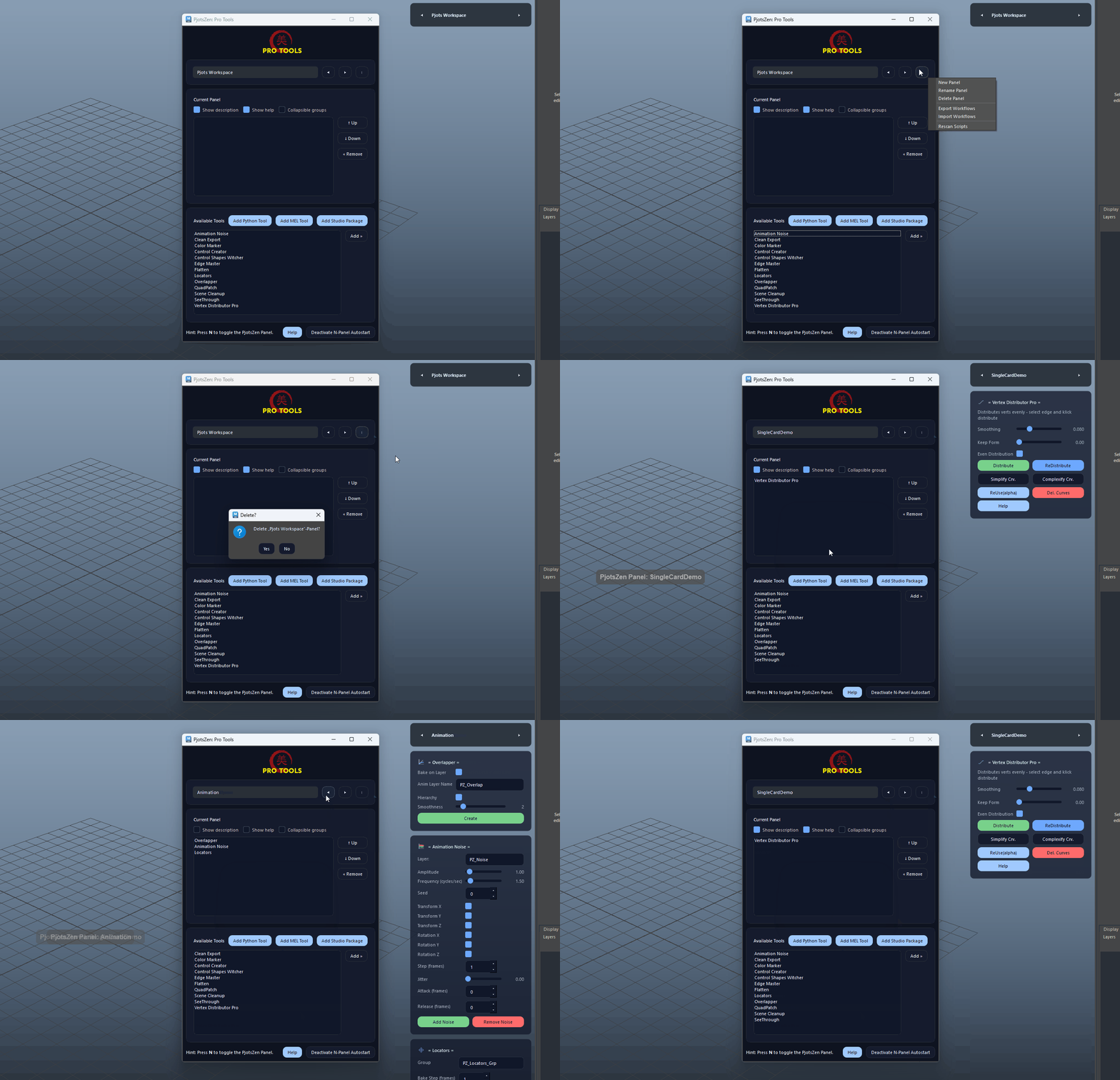
  • Use with care – this cannot be undone from inside the UI.
Panel Menu – Delete Panel demo

Panel Menu – Export Workflows

PRO

Exports all panels and their layouts to a portable file for backup or sharing.
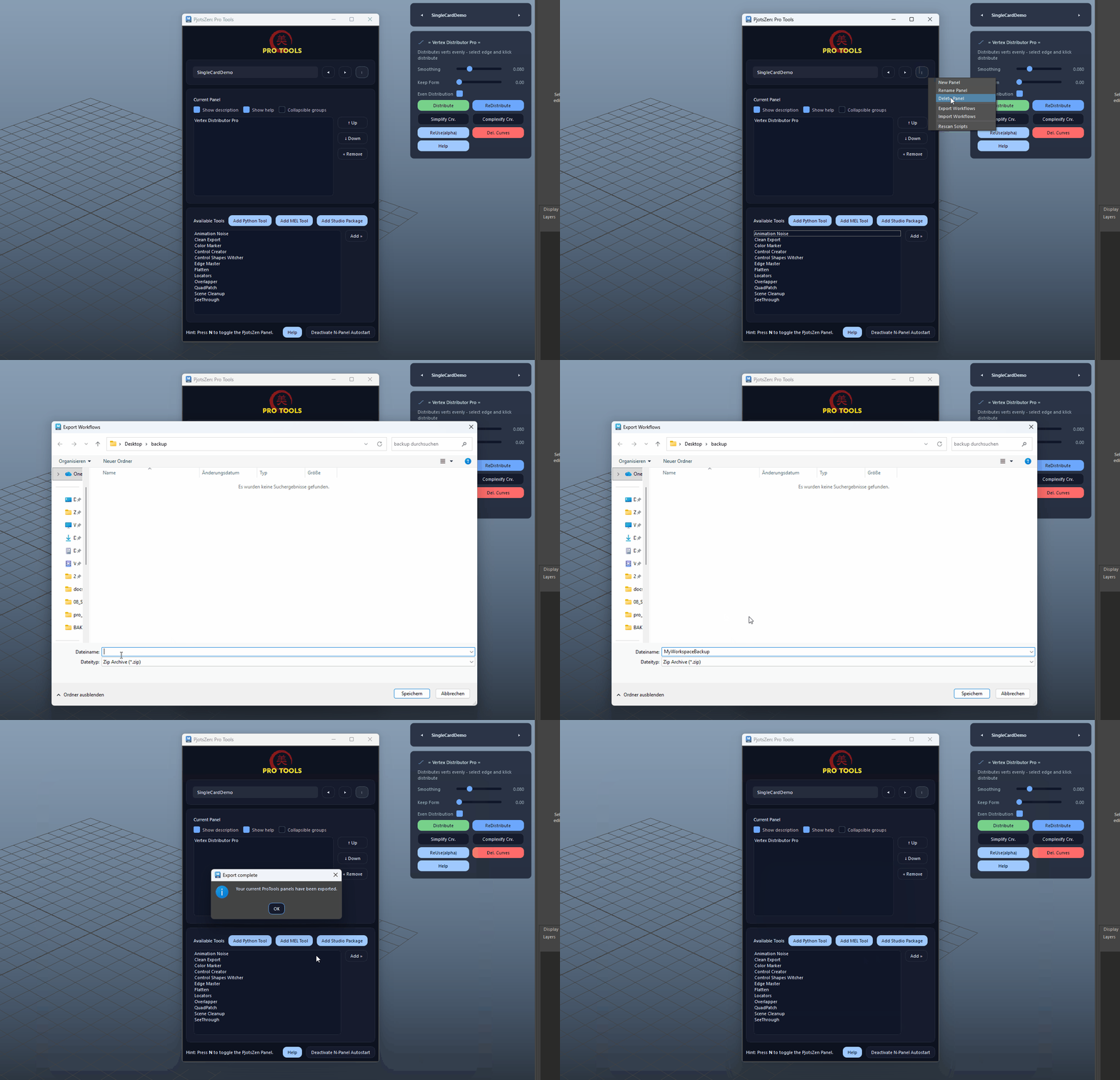
  • Export your setup before major updates or when moving to a new machine.
Panel Menu – Export Workflows demo

Panel Menu – Import Workflows

PRO

Imports workflows from a previously exported file, restoring panels and layouts.
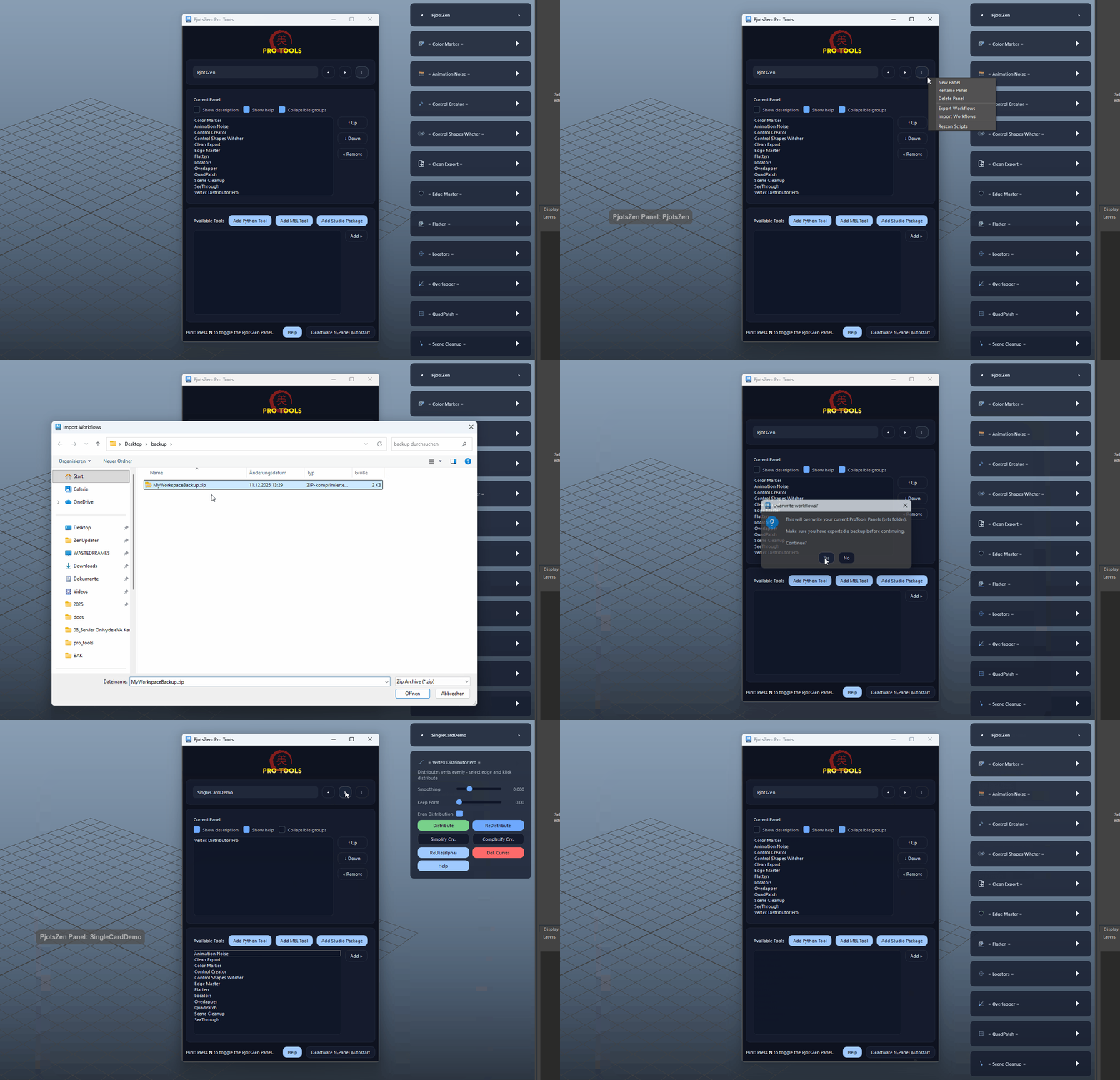
  • Use this to sync ProTools layouts between home, studio and render nodes.
Panel Menu – Import Workflows demo

Panel Menu – Rescan Scripts

Rescans the PjotsZen tool directories and refreshes the list of available tools.
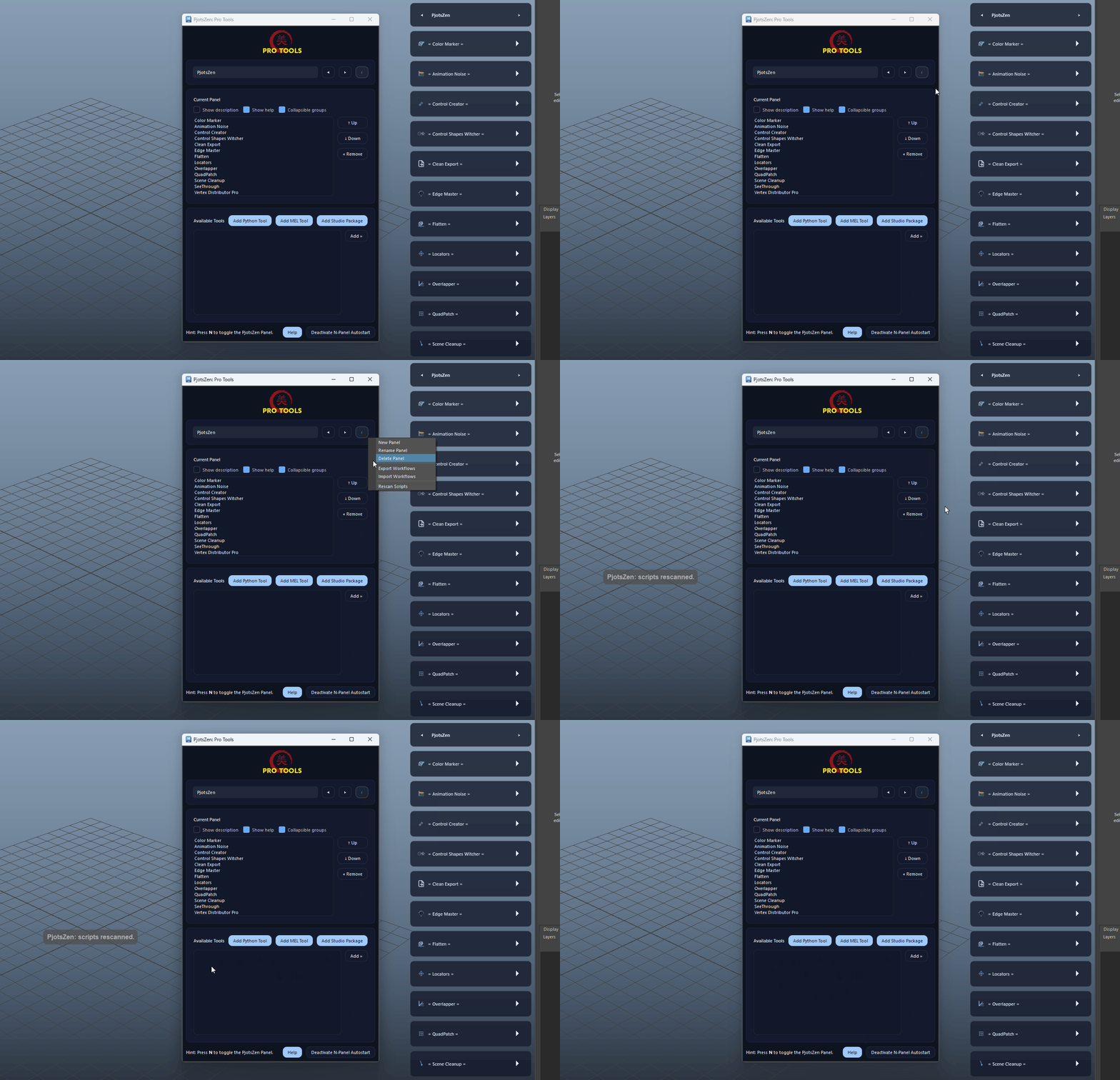
  • Run this after installing new tools or updating existing scripts.
Panel Menu – Rescan Scripts demo

Show Description

Toggles whether each tool card displays its short description in the N-Panel.
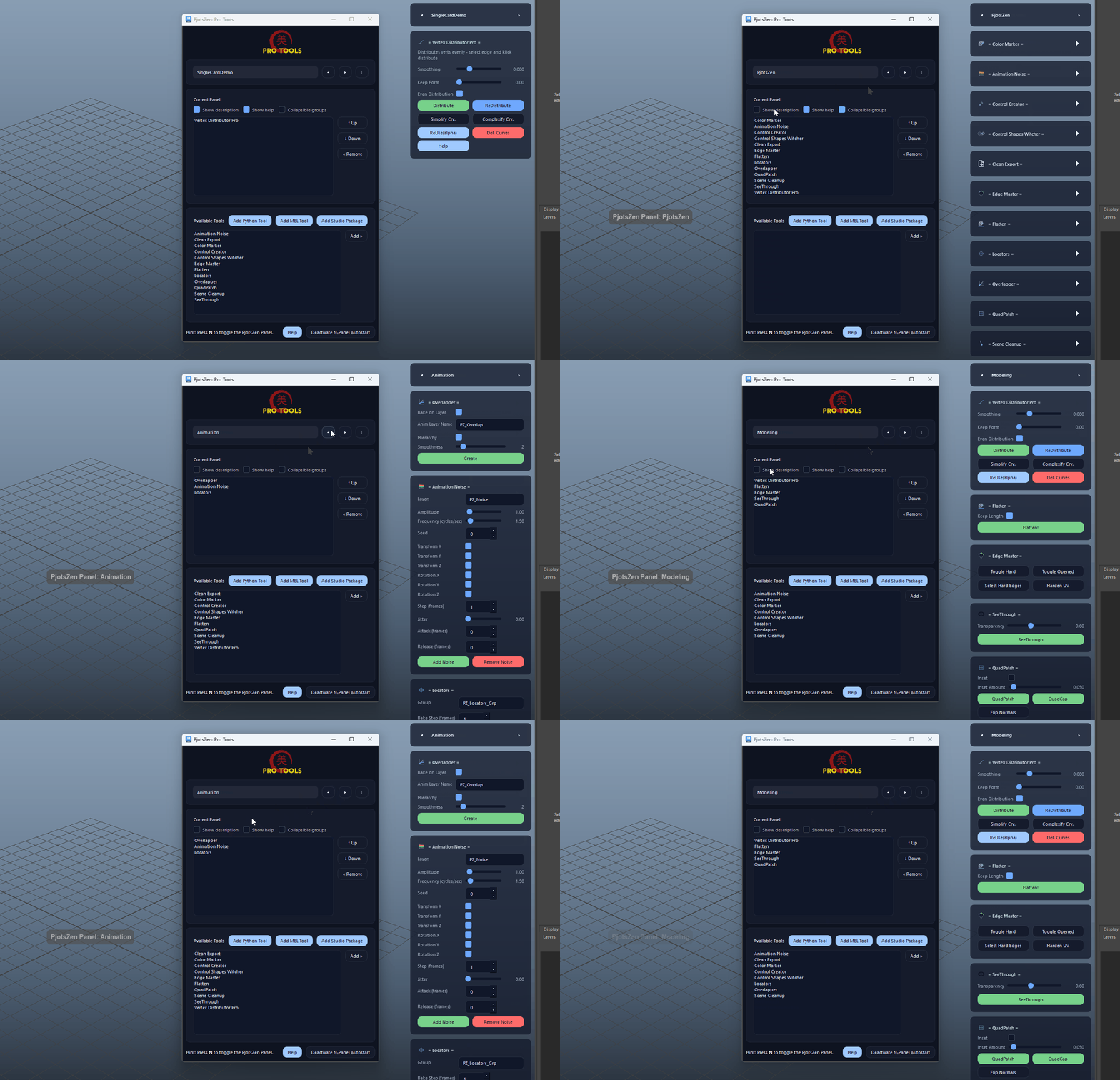
  • Disable this for a very compact layout once you know your tools by heart.
Show Description demo

Show Help

Shows or hides extended help text inside tool cards when available.
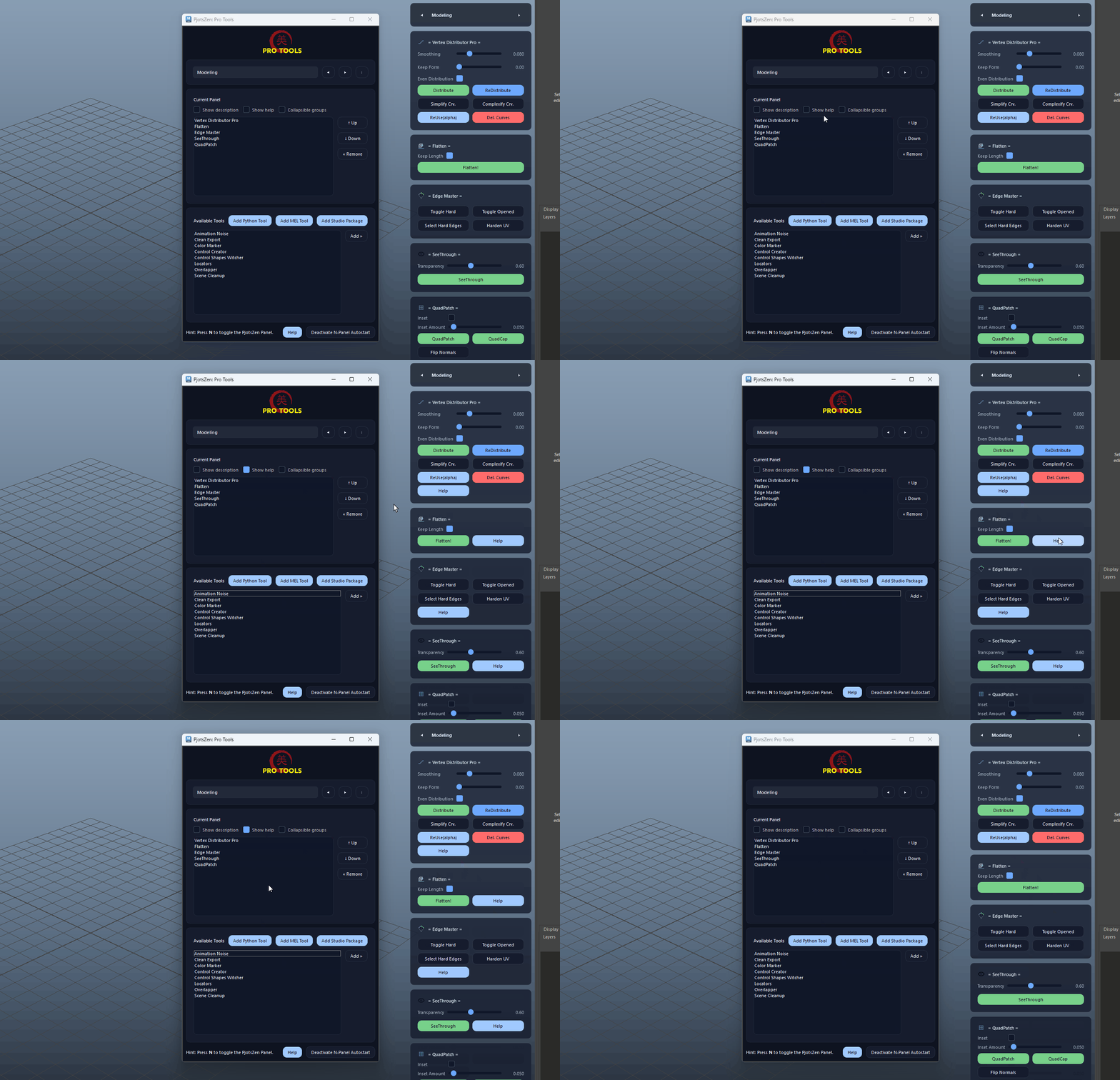
  • Keep this on when sharing panels with juniors or when exploring new tools.
Show Help demo

Collapsible Groups

Enables collapsing and expanding tool groups in the N-Panel.
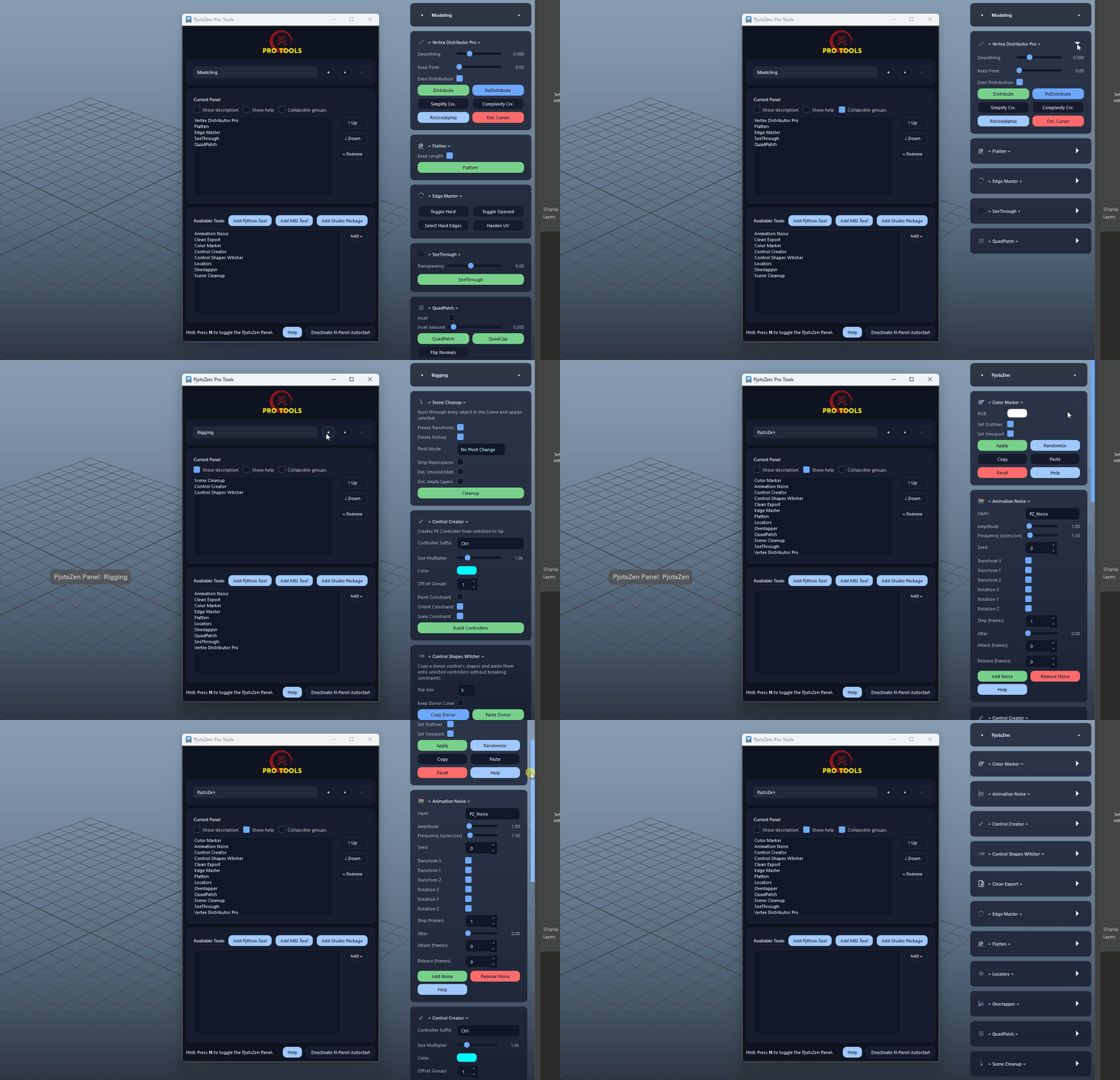
  • Collapse rarely used sections to keep large panels tidy and scannable.
Collapsible Groups demo

Current Panel – Move Up (↑)

PRO

Moves the selected tool one step up in the current panel’s tool list.
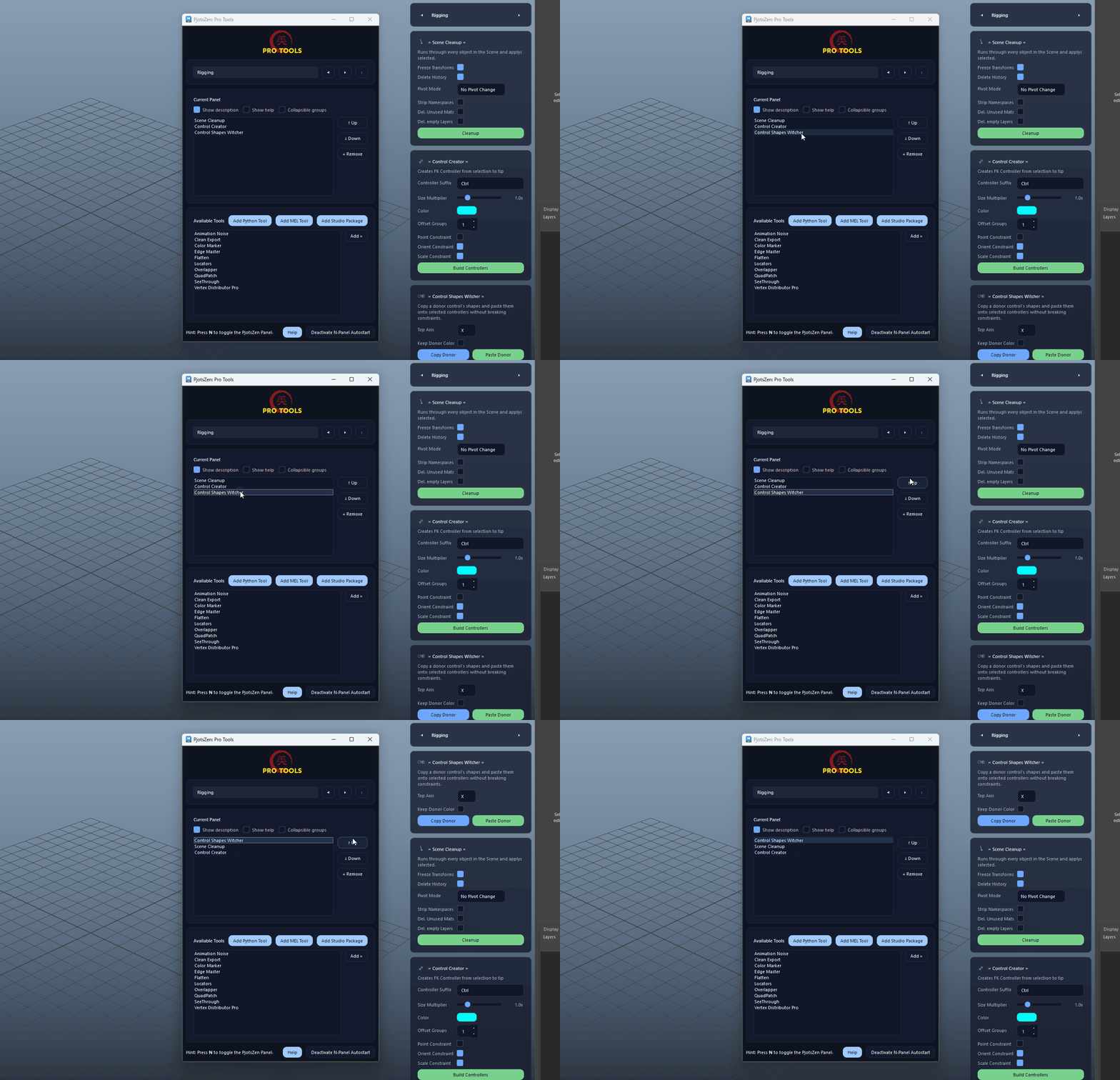
  • Bring frequently used tools closer to the top for faster access.
Current Panel – Move Up (↑) demo

Current Panel – Move Down (↓)

PRO

Moves the selected tool one step down in the current panel’s tool list.
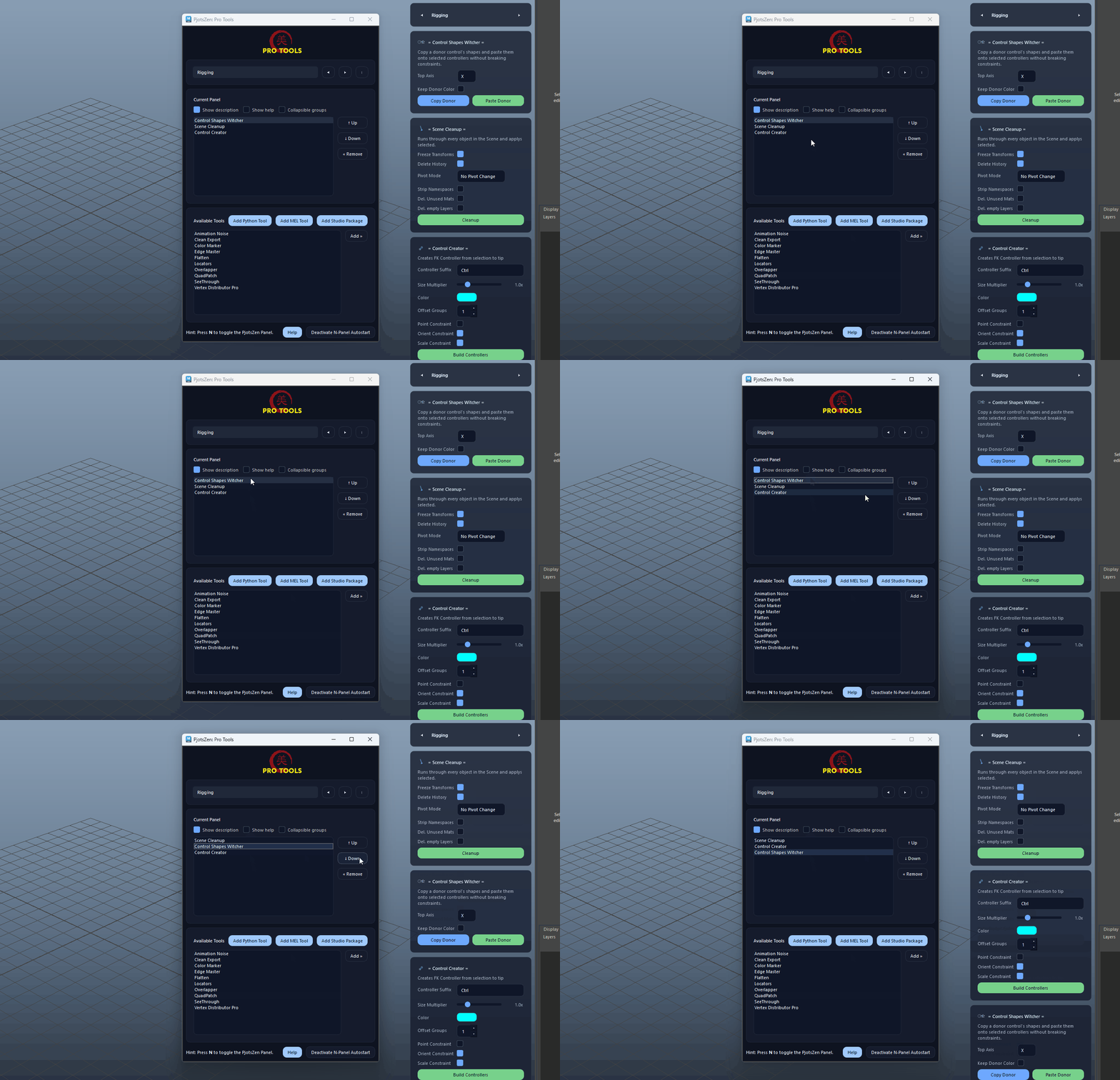
Current Panel – Move Down (↓) demo

Current Panel – « Remove

PRO

Removes the selected tool(s) from the current panel without deleting the tool from disk.
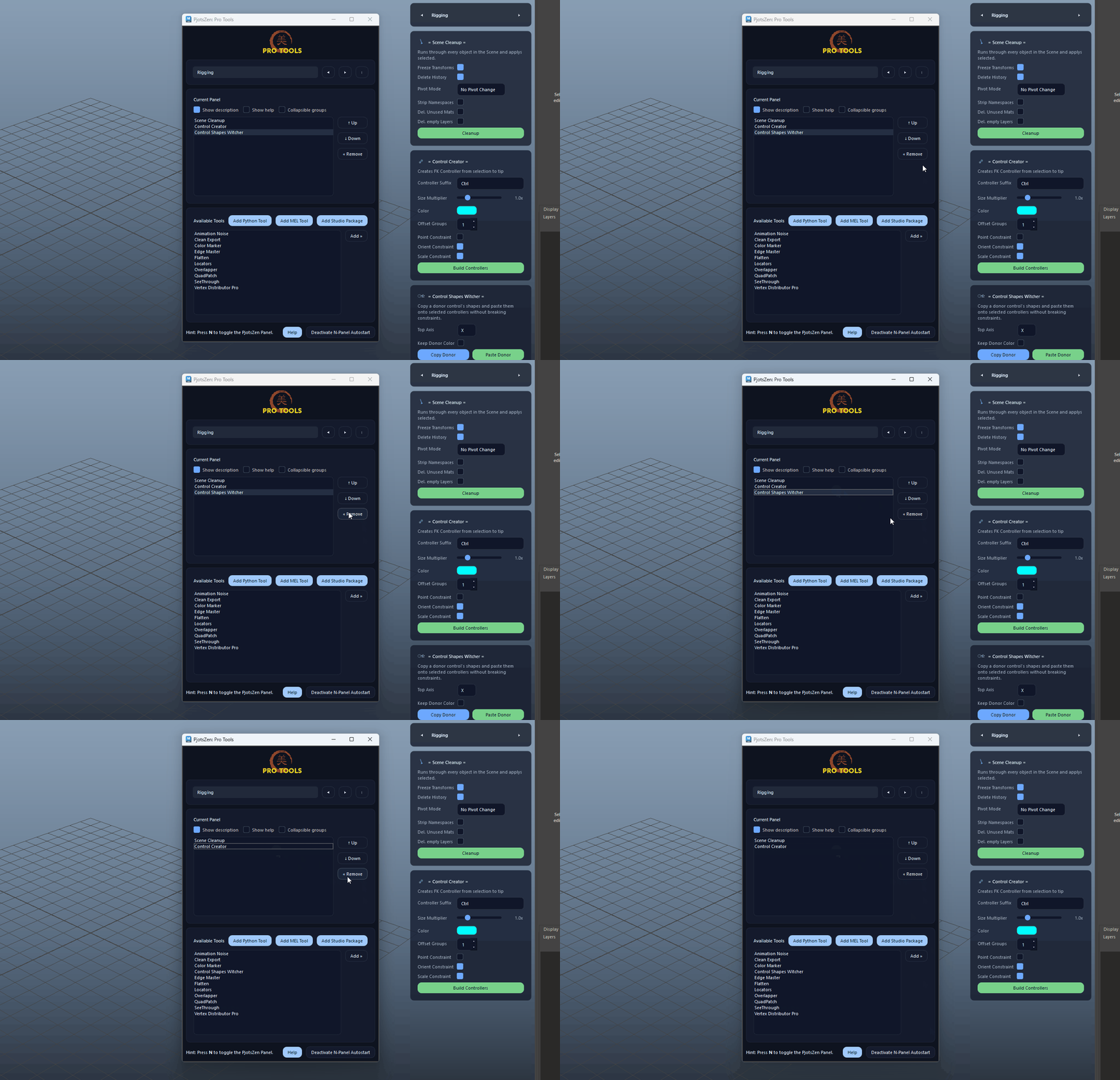
  • You can re-add removed tools later from the Available Tools list at any time.
Current Panel – « Remove demo

Available Tools – Add Python Tool

PRO

Opens a wizard to register or create a Python-based Zen tool and make it available in ProTools.
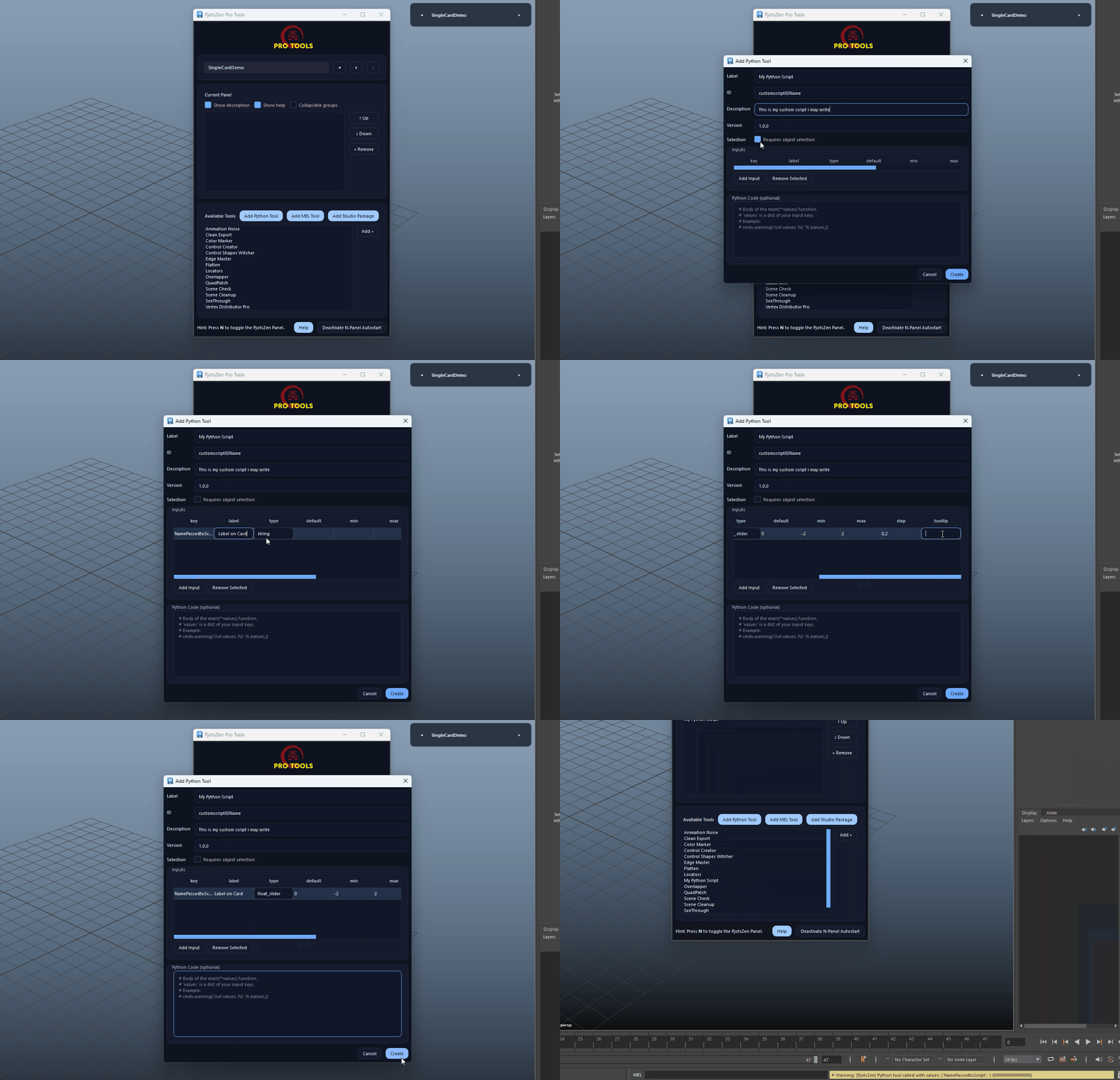
  • Use this as the standard entry point for new Python tools in your pipeline.
Available Tools – Add Python Tool demo

Available Tools – Add MEL Tool

PRO

Registers a MEL-based tool so it can be added to panels like any other Zen tool.
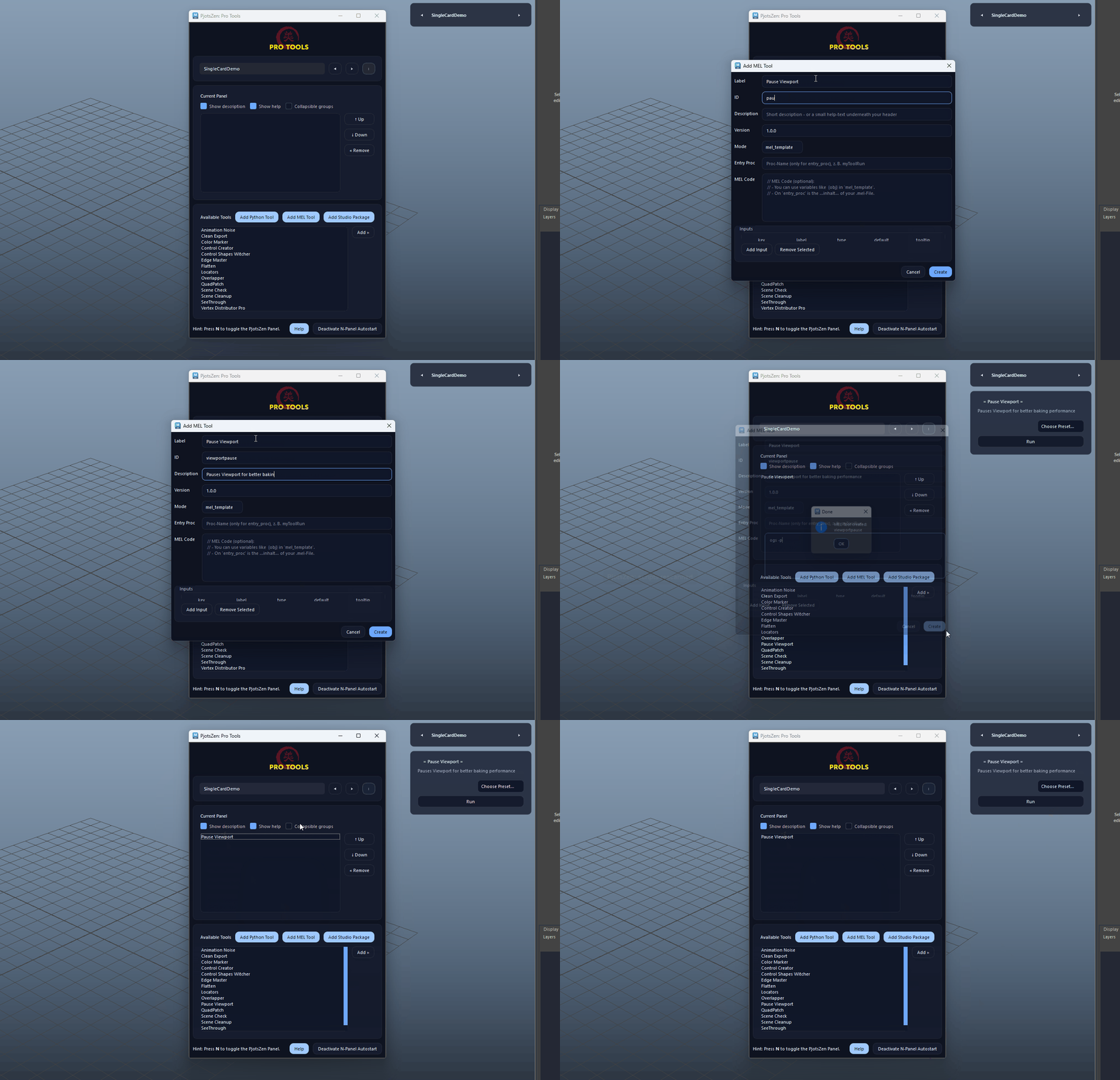
Available Tools – Add MEL Tool demo

Available Tools – Add Studio Package

Installs a PjotsZen Studio Package and adds the contained tools to the available list.
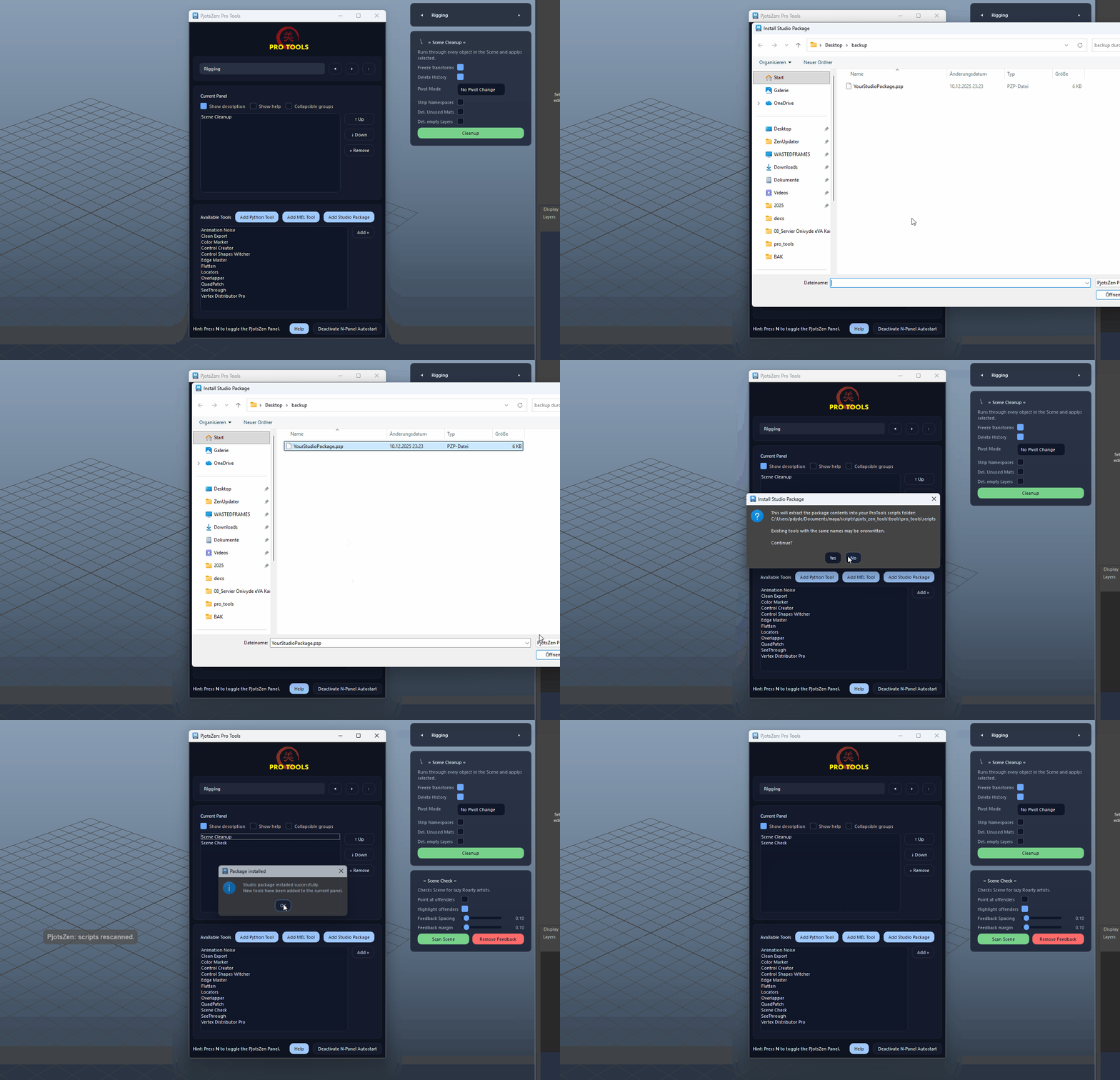
  • Ideal for rolling out standardized studio toolsets to multiple artists.
Available Tools – Add Studio Package demo

Available Tools – Add »

PRO

Adds the selected tool(s) from the Available Tools list to the Current Panel.
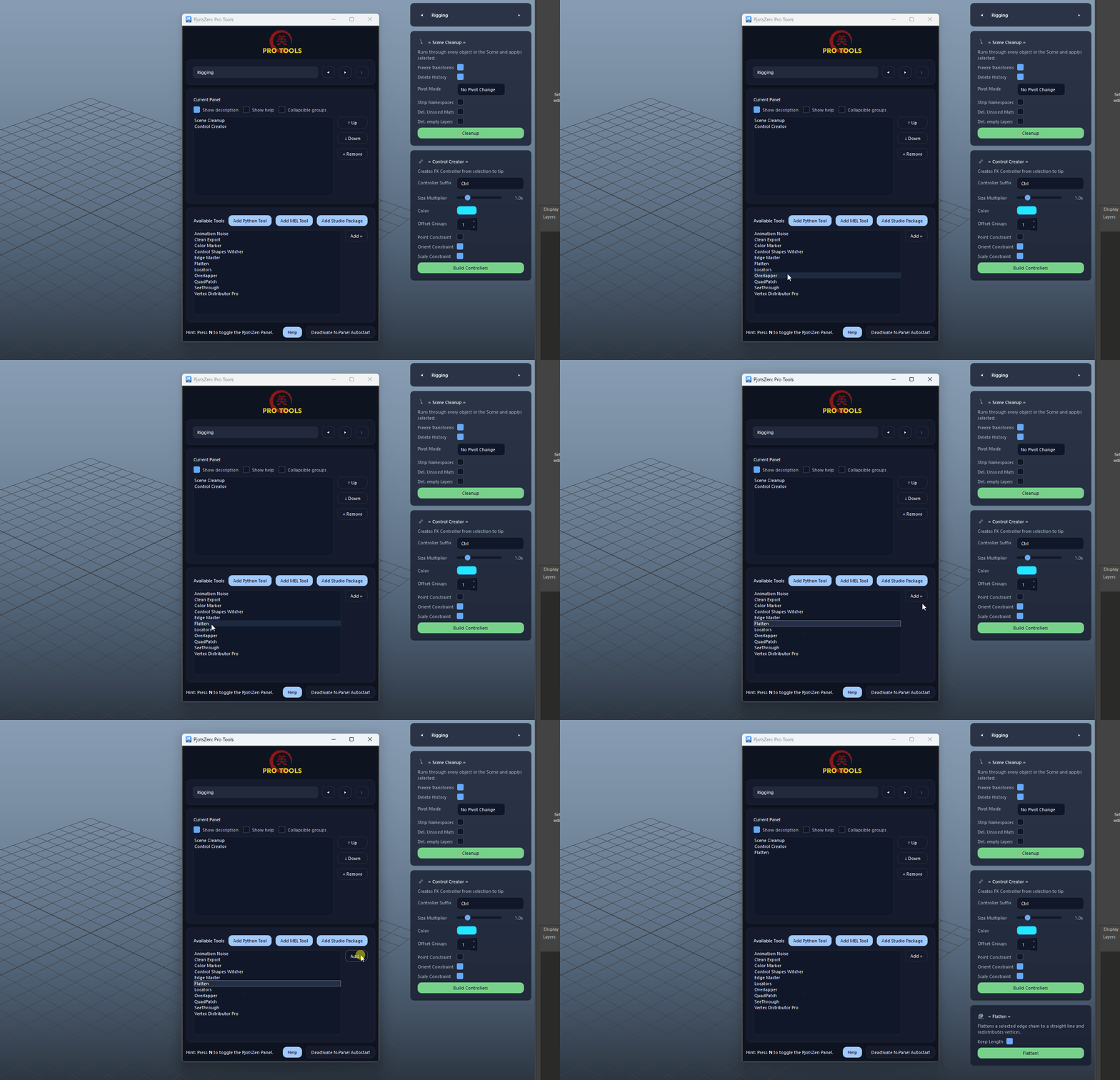
  • You can select multiple tools and add them in one go to quickly build a panel.
Available Tools – Add » demo

Footer – Help

Opens the online ProTools documentation page in your default browser.
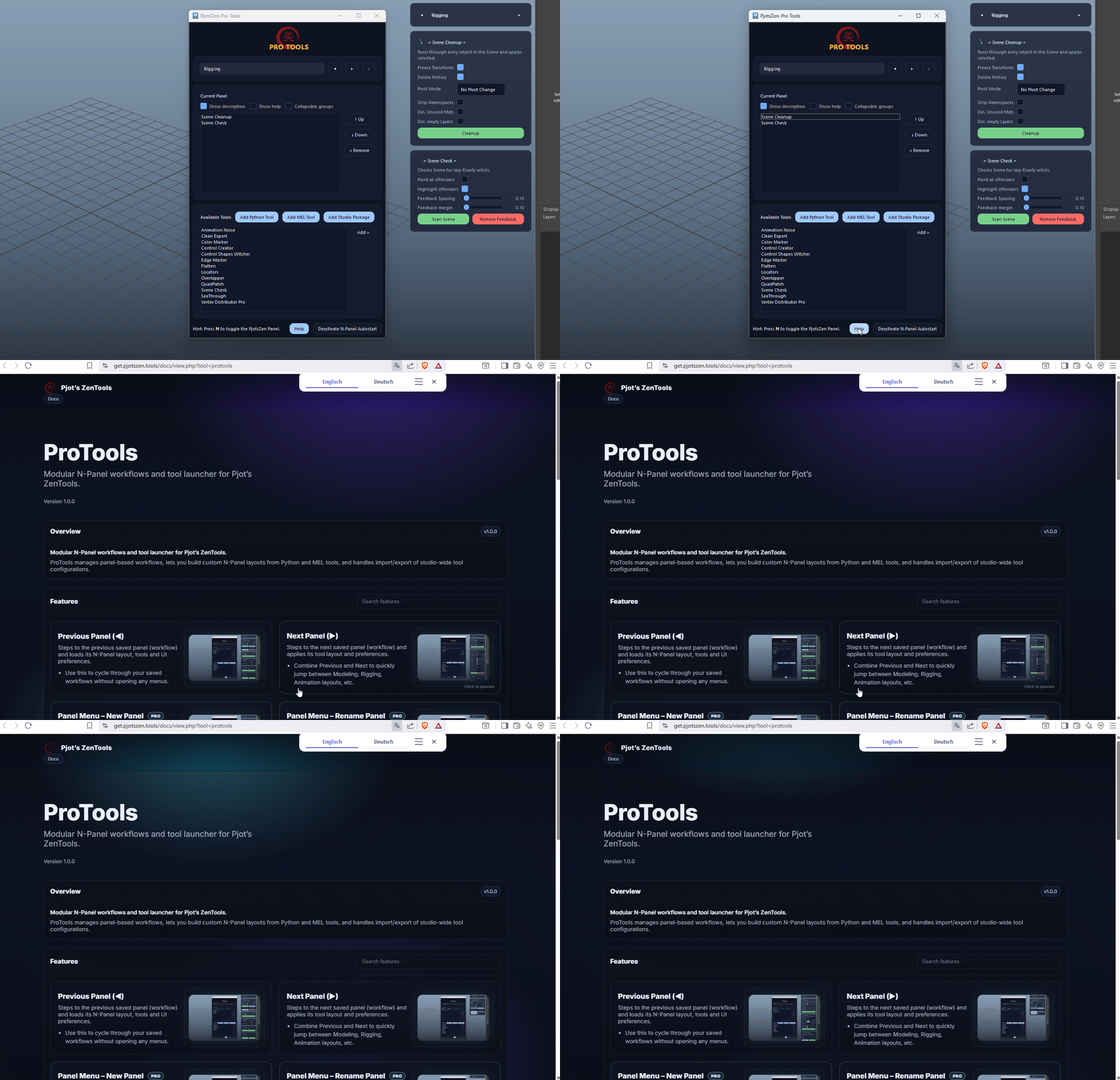
  • Use this as the main entry point to GIF-based documentation and updates.
Footer – Help demo

Footer – N-Panel Autostart

Toggles automatic opening of the PjotsZen N-Panel on Maya startup by editing userSetup.py.
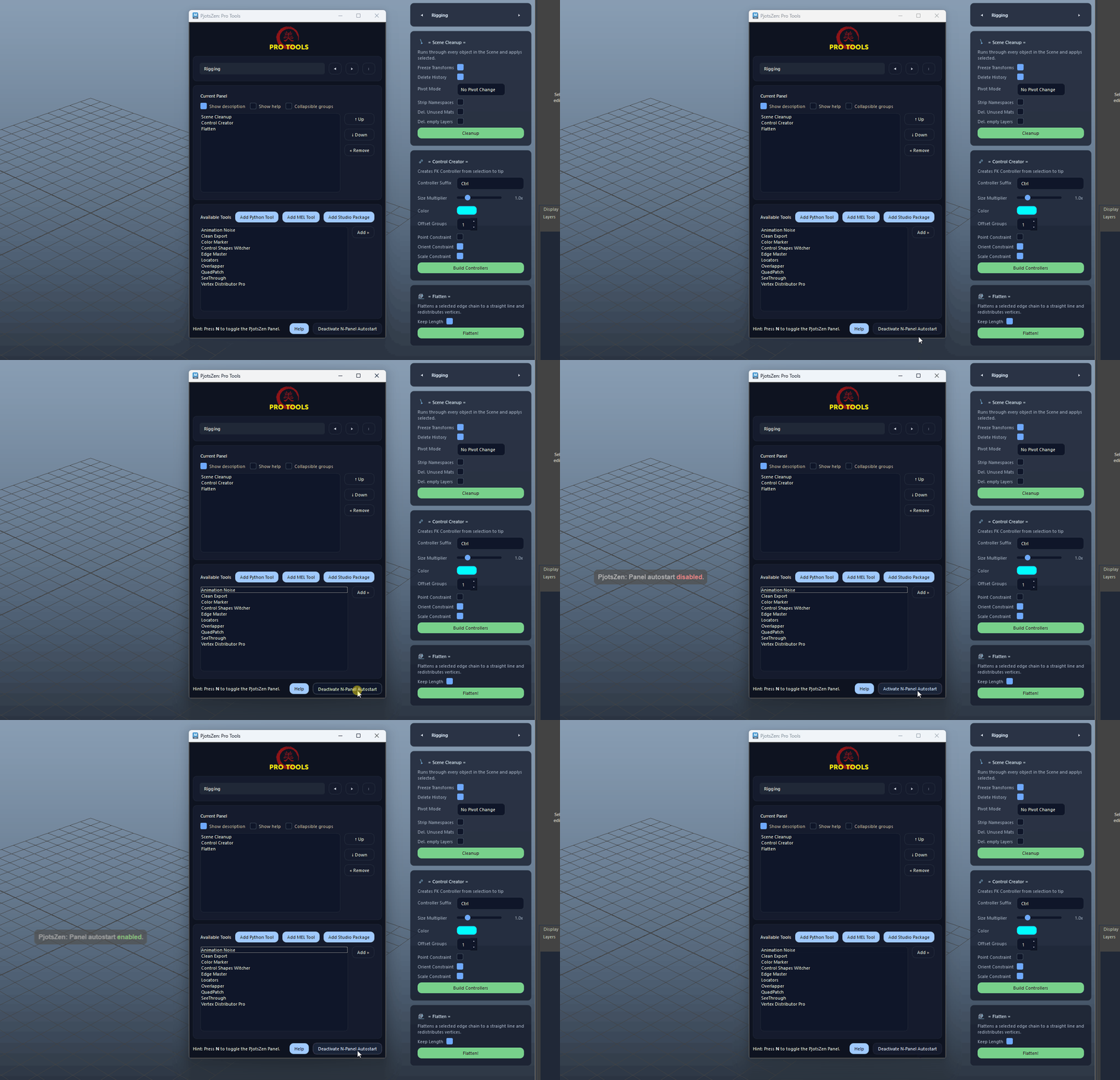
  • Activate this on work machines where you always want your Zen layout ready on launch.
Footer – N-Panel Autostart demo

Hotkey – N to toggle panel

Pressing N toggles the PjotsZen N-Panel visibility when the hotkey is installed.
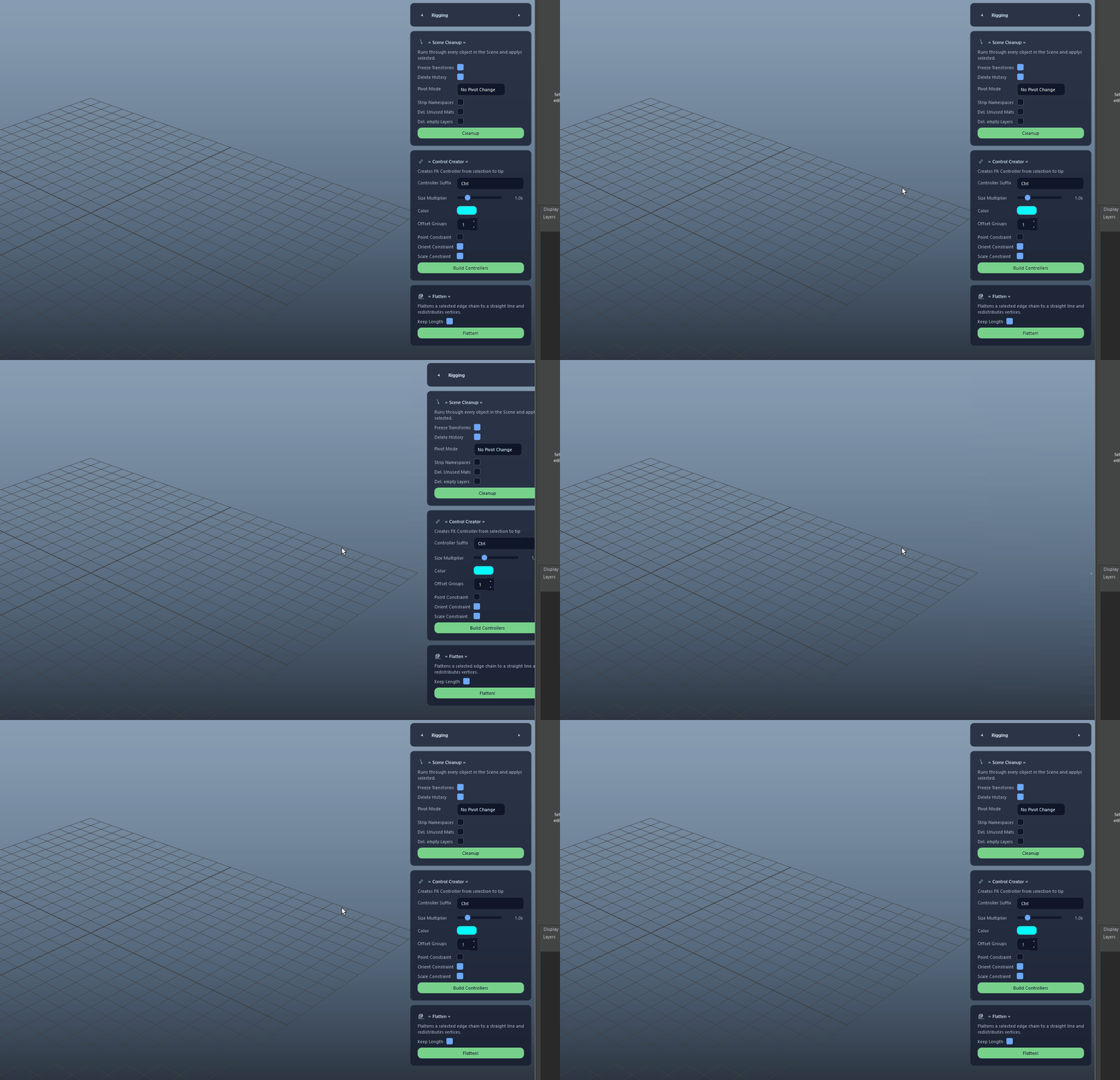
  • Use N as your universal Zen entry key across all scenes and projects.
Hotkey – N to toggle panel demo
FAQ

What is ProTools used for?

ProTools manages panel-based workflows, lets you build custom N-Panel layouts from Python and MEL tools, and handles import/export of studio-wide tool configurations.

Which host application does ProTools support?

ProTools is built for Autodesk Maya and is distributed through AO Studio Tools.

Where can I download ProTools?

Download the current AO Studio Tools package from https://aostudio.tools/getthetools.html and install it through AO.Hub.